
Read the project source
Open the Edge repository, the official Xenia project note and the current platform documentation before choosing a build.
Experimental fork guide
Xenia Edge is an experimental community fork of the Xbox 360 emulator, originally based on Xenia Canary. It may help when a game or platform needs a different development path, but it is not a universal replacement for official builds. This guide covers setup, files, compatibility and rollback so you can test Edge without mixing it into a working Xenia Manager folder.
| What it is | An experimental fork that started from Xenia Canary and follows its own development and compatibility priorities. |
|---|---|
| Why try it | A title or platform may benefit from Edge changes, a newer renderer path, or a community-tested setting that is not in your current build. |
| What it is not | It is not proof that every Xbox 360 game works, and a successful Edge launch does not replace an official compatibility report. |
| Best first test | Keep Edge in a separate folder, use one legally obtained game, and record the build, renderer, controls and result. |
Quick answer
Xenia Edge is an experimental fork of Xenia that was originally based on Xenia Canary. The Edge project describes a focus on faster iteration, usability, platform support and higher default compatibility for some games. That description is a project direction, not a blanket compatibility promise. Edge can improve one title and introduce a new regression in another, so the useful question is whether a specific build solves a specific problem for your setup.
The official Xenia project site lists Edge as a more experimental community branch. The Edge repository is the appropriate source for its own releases, build notes and configuration behavior. Keep those sources separate from the Xenia Canary guide: Canary is an official experimental line, while Edge is a separate fork with its own risks and testing history.
Choose the path
On Windows, Edge generally follows a portable emulator workflow: download a release archive from the project source, extract it to a dedicated folder and launch the executable. On Linux and macOS, the available package, frontend or build can add another compatibility layer. The Libretro documentation lists Windows x64, Linux x86_64 and arm64, macOS Apple Silicon and Android-related core targets, but a listed target is not the same as equal game support. Check the current build notes before choosing a package.
Your graphics backend is another decision. The maintained core documentation describes Vulkan and Direct3D 12 on Windows, while a native or frontend path can expose different options. Start with the backend that the source documentation recommends for your operating system. Do not convert a renderer suggestion from one game into a universal best setting; driver version, shader cache, resolution scale and the game revision all affect the result.
Controlled install
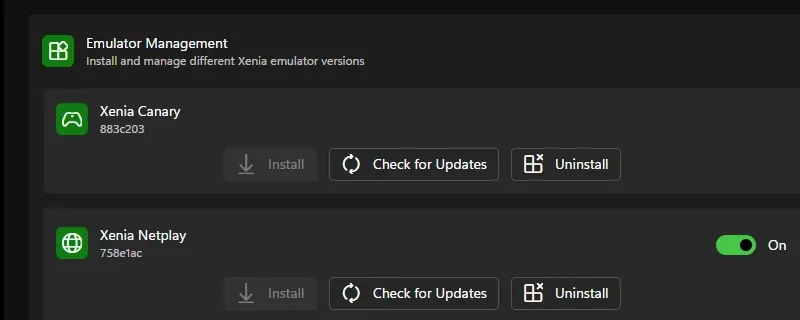
Create a folder such as Xenia-Edge beside, rather than inside, your normal Xenia Canary or Xenia Manager directory. Extract the Edge archive completely; launching from inside a compressed file can hide missing libraries and produce misleading permission errors. Keep the executable, configuration, cache and log together until the first test succeeds. If your frontend uses a separate system directory, follow its documented layout instead of copying a Windows portable folder into it.
Launch Edge once with default settings before adding patches, custom launch options or a second game. Confirm that the window opens, the log is written and the input backend sees a controller. Then add one legally obtained game file and repeat the same short scene. The Xenia Manager setup guide explains why emulator builds, game content, patches and saves should have clear boundaries; the same separation makes an Edge comparison possible.
Files and settings
A portable Edge installation may keep content, shader caches, profiles and logs beside the executable, while a frontend can move them into its system directory. The Libretro Xenia Edge page documents an Xenia-Edge folder containing content for saves, title updates and DLC, a cache directory, a profile-name file and xenia.log. Treat that as a reference for the core path, not a guarantee that every standalone build uses identical names. Check where the current build writes data before backing up or deleting anything.
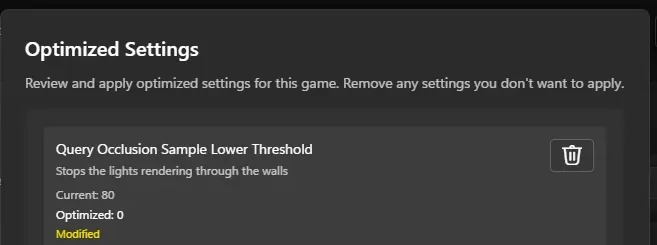
Change one setting at a time. Begin with the graphics API, resolution scale and frame pacing only when the clean game scene is repeatable. If a game needs a compatibility option such as clearing GPU memory page state or mounting a cache partition, note the exact game, build and symptom beside the change. The Xenia settings guide covers the same baseline discipline, while the patches guide helps keep patch files separate from emulator settings.
Network and compatibility
The Edge repository describes System Link behavior between Edge instances on the same network, with a default tunnel mode and an optional Xlink Kai transport for broader connections. Network support still depends on the build, game mode, firewall and matching revisions. Test local connections with two controlled instances first, and use the Xenia Netplay guide for the general rule: matching title updates, profiles and supported modes matter more than a single successful menu launch.
Compatibility evidence should describe what actually happened. Record whether the game booted, reached gameplay, accepted input, rendered correctly, played audio, saved and survived a restart. The Libretro core page lists limitations such as no RetroArch save states, rewind, camera, netplay or softpatching for that core path. Those limits may not map one-to-one to the standalone fork, so label the frontend and build instead of copying the table as a universal Edge claim.
Troubleshooting
If Edge closes immediately, start with the archive and runtime. Confirm that the executable matches your CPU architecture, the folder is writable and the log has a fresh entry. Then verify the graphics driver and selected API before blaming the game. A black screen can come from a renderer or shader problem, while a missing game entry can come from a wrong content root. The library troubleshooting guide explains why folder selection and file shape should be checked before a compatibility conclusion.
If input or audio fails, return to the clean baseline. Disable duplicate virtual controllers, overlays and optional patches, then test one wired or known-good controller. For crackling or delayed sound, compare the same scene with the previous working build and note whether the symptom is global or title-specific; the audio troubleshooting guide gives a safer isolation order. When a change helps, keep it in a per-game note rather than turning it into a global preset.
After a successful test
Once a game works, copy the Edge folder or make a dated archive before updating it. Record the Edge commit or release, operating system, graphics driver, renderer, controller backend, game revision and any per-game option. Back up normal saves and profiles separately from caches. This lets you tell a build regression from a damaged save and makes a community report useful to another player.
Update one layer at a time. Do not replace the emulator, driver, frontend, patches and game files in one session. Re-run the same scene, save and input checks after each change. If the new result is worse, restore the known-good folder and report the old and new identifiers. The Canary update guide describes this rollback habit for official builds; Edge needs it even more because its branch can move quickly.
Controlled setup
Open the Edge repository, the official Xenia project note and the current platform documentation before choosing a build.
Keep Edge, Canary, Manager files, caches and game content distinct so a comparison has a clear baseline.
Confirm the executable, log, configuration path and controller input before adding patches or launch options.
Record boot, gameplay, graphics, audio, input and save behavior with one repeatable game revision.
Apply only a documented renderer, compatibility option or per-game setting, then repeat the same scene.
Archive the working folder, compare Edge with the official build and roll back when the result regresses.
Related Xenia guides
Compare the official branches before deciding whether an experimental fork is worth the added variables.
Compare official buildsUse a broader Linux and Proton workflow when your Edge test runs on a desktop distribution.
Read Linux guideBack up content, profiles and saves before moving an Edge folder or changing a frontend.
Protect savesXenia Edge FAQ
No. Xenia Edge is an experimental community fork that started from Xenia Canary. The official Xenia site lists it separately, so use the Edge repository for Edge-specific releases and the official project for the main emulator context.
Use Edge when its documented changes or a reproducible community report address a problem you have. Keep Canary or another known-good build available because fork behavior and compatibility can differ by game.
The Edge project and maintained frontend documentation describe Windows, Linux and macOS paths, with related Android or core targets. Requirements and game support vary by build, architecture, frontend and graphics API, so verify the current source before installing.
The Edge repository describes System Link between Edge instances and an optional Xlink Kai transport. Test the same build, game revision and network mode on every instance; frontend limitations may differ from the standalone fork.
Xenia Manager is documented around a Windows workflow and should not be treated as a guaranteed Edge frontend. Keep Edge separate, confirm the executable and paths manually, and use the manager guides for folder and backup principles rather than assuming automatic integration.