
Check the active project
Read its current installation, service and compatibility notes before downloading anything.
Online multiplayer setup
Xenia Netplay is a community multiplayer path built around a compatible Xenia Canary Netplay build, not a switch that adds online play to every Xbox 360 game. Start with the current project source, confirm that the exact game is supported, use legally obtained matching game content, and test the same build and settings with every player before troubleshooting the network.
| Build | Use the Netplay-compatible Canary build documented by the active project; normal Master or unrelated Canary builds may not expose the same services. |
|---|---|
| Game | Every player should use the same game release, region and Title Update when the compatibility note requires it. |
| Profiles | Create separate local profiles or gamertags and avoid sharing one writable save folder between players. |
| Network | Allow the chosen executable through the firewall, keep clocks correct and test without VPN or aggressive filtering first. |
| Source boundary | This guide does not provide ROMs, ISOs, game keys, copyrighted DLC or unofficial multiplayer servers. |
Quick answer
Xenia Netplay combines a compatible emulator build with community web-service work so selected Xbox 360 titles can reach multiplayer features. It does not recreate Xbox Live as a universal drop-in service, and the presence of a multiplayer menu does not prove that matchmaking, invites, leaderboards or every game mode works.
Treat the compatibility list and project documentation as the authority for the game you want to test. The useful question is not only “does Xenia support this game?” but “does this exact game version support the Netplay feature I need on the current documented build?”
Build selection
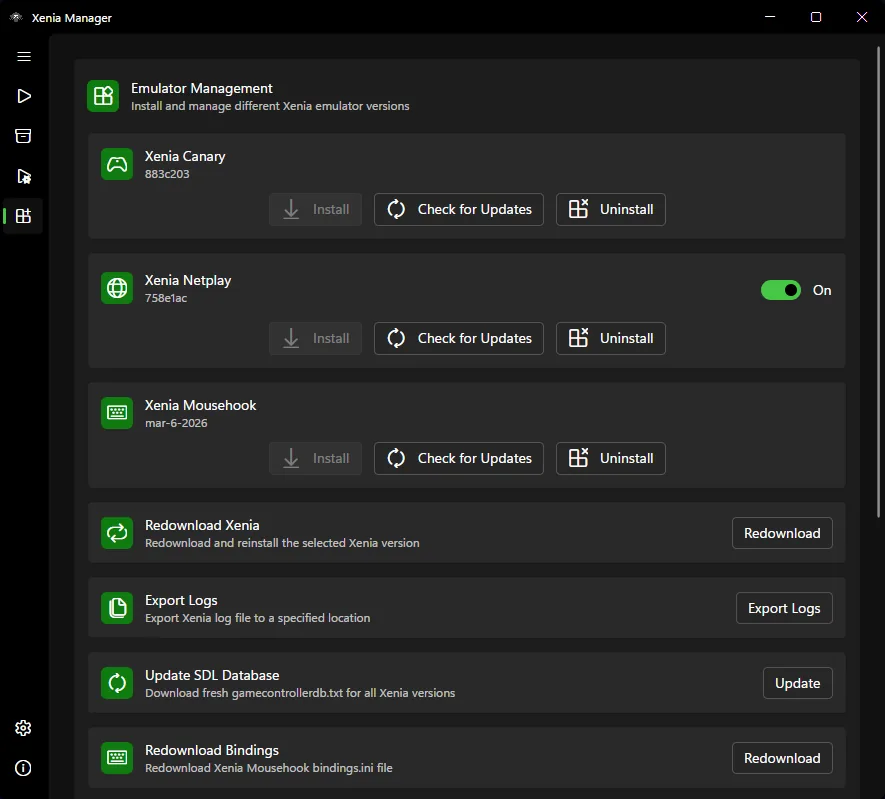
Open the active Netplay project and follow its release or installation instructions. Record the repository, tag or commit, file name and check date. A similarly named “nightly” archive from a video description or mirror can be outdated, modified or unrelated to the current service implementation.
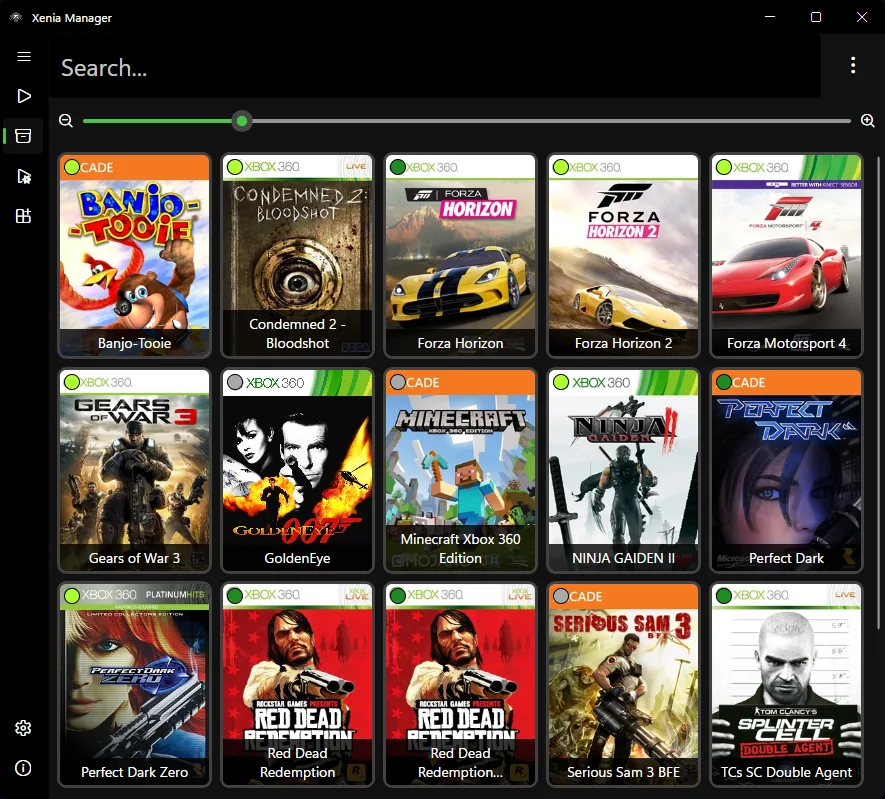
Xenia Manager 4.3.2 added Netplay and Mousehook compatibility-list support, so the manager can help identify related compatibility information in tooltips and game details. That does not turn the regular emulator into the Netplay build; you still need to point the manager to the correct executable and keep it separate from a known-good Master or Canary folder.
Compatibility
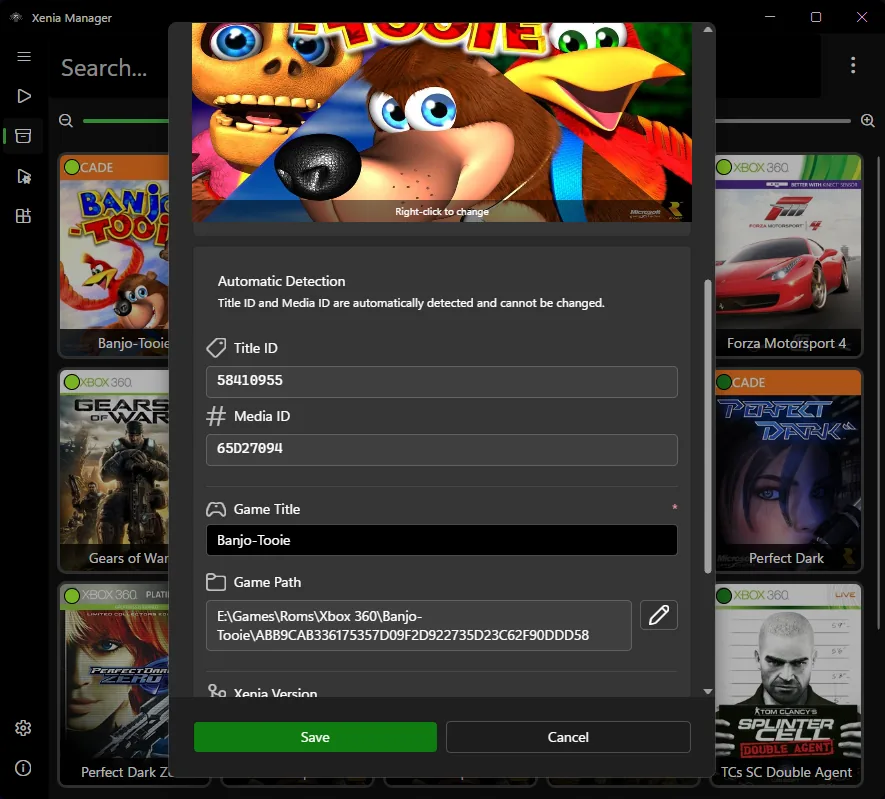
A compatibility result should name the game, region or Title ID, Title Update, emulator build, tested mode and date. “Online works” is too vague: local profile creation may work while matchmaking, private sessions or a specific mode still fails.
Before connecting, compare file revisions and settings without exchanging copyrighted files. Each player should verify their own legally obtained content, apply the same required Title Update and disable unrelated patches for the baseline. If a game needs a specific patch, enable the identical option only after the clean test.
Profiles and saves
Create a dedicated test profile or gamertag for Netplay when the project workflow requires one. Keep each player’s profile and save data separate, and back up the normal content folder before the first connection. An emulator or service update can change behavior even when the game itself is unchanged.
If profile creation fails, confirm the correct Netplay executable is running, the content path is writable and the profile was not copied from another active session. Use the Xenia save files guide for backup and restore boundaries before moving content directories.
Connection fixes
Start with the smallest reproducible test: one documented game, two players, matching builds, default network settings and no unrelated patches. Confirm the service or project is currently available, then check firewall permission for the exact executable. Temporarily remove VPN, proxy, strict DNS filtering or third-party traffic inspection from the test path.
A connection failure can also be a game-support failure. Capture the emulator log, the point where the session stops, both build identifiers and whether profile login succeeds. Do not publish account secrets, private IP addresses or copyrighted file links when asking for help.
Updates
Do not update the manager, emulator build, web-service files, game Title Update and patches in one step. Save a working folder, update one layer, repeat the same session and roll back if the result changes. This separates a real service outage from a regression or local configuration mistake.
The versions checked for this guide are Xenia Manager 4.3.2, published August 20, 2026, and Xenia Canary build a5262a9, published August 22, 2026. These are freshness references, not a promise that every Netplay project uses those exact binaries. Always follow the active project’s own release instructions.
Controlled setup
Read its current installation, service and compatibility notes before downloading anything.
Keep the Netplay executable away from your normal Master or Canary baseline.
Match region, Title ID, Title Update and required configuration on every PC.
Use a dedicated test profile and preserve the normal content folder.
Confirm firewall access and begin without VPN, proxy or extra patches.
Record build tags, host, game mode, logs and the precise result before changing anything.
Related guides
Understand experimental builds, separate folders and rollback planning.
Read Canary guideLearn how to evaluate game, build and mode-specific compatibility reports.
Check compatibilityFix detection, mapping and input issues before blaming the network.
Set up controllersBack up profiles and saves before changing builds or content paths.
Protect save dataNetplay FAQ
No. Support depends on the game, mode, service implementation, emulator build and sometimes the Title Update.
Do not assume so. Follow the active Netplay project's build and installation instructions and record the exact executable you use.
Xenia Manager 4.3.2 can surface Netplay compatibility information, but you must still follow the Netplay project's setup and point the manager to the correct build.
Common causes include mismatched builds or game revisions, unsupported modes, firewall filtering, VPN or proxy interference, service outages and incorrect profiles.
Use matching region, Title Update and required settings whenever the compatibility notes specify them.
This site does not provide games, ROMs, ISOs or copyrighted DLC. Use legally obtained content and never trust a Netplay package that bundles games.