
Update from a first-party source
Record the build or release before changing settings.
Performance guide
Xenia settings work best as a controlled baseline, not a universal preset. Start with a current Xenia or Xenia Canary build, change one graphics, resolution, CPU or audio option at a time, and keep per-game profiles so a fix for one title does not break another.
| Build | Use a current Xenia master or Canary build from a first-party source. |
|---|---|
| Graphics API | Keep the working default first; switch renderer only when a game report requires it. |
| Resolution | Begin at native resolution, then increase after the game is stable. |
| CPU and timing | Leave advanced timing controls unchanged unless a game-specific source documents them. |
| Audio | Use the default backend and adjust queue settings only for repeatable crackle or delay. |
| Profiles | Save changes per game and keep a known-good backup. |
Quick answer
The best Xenia settings are the simplest stable settings for the specific game, build and hardware you are testing. A strong baseline uses default renderer and CPU behavior, native resolution, no unrelated patches, and a repeatable gameplay scene. Only after that baseline works should you raise resolution or apply a documented game-specific option.
Do not copy a long config from a video without checking its build date and title update. Xenia and Xenia Canary change quickly, and an old workaround can reduce performance on a newer build. Use the Xenia compatibility list guide to confirm known issues before tuning.
Official workflow
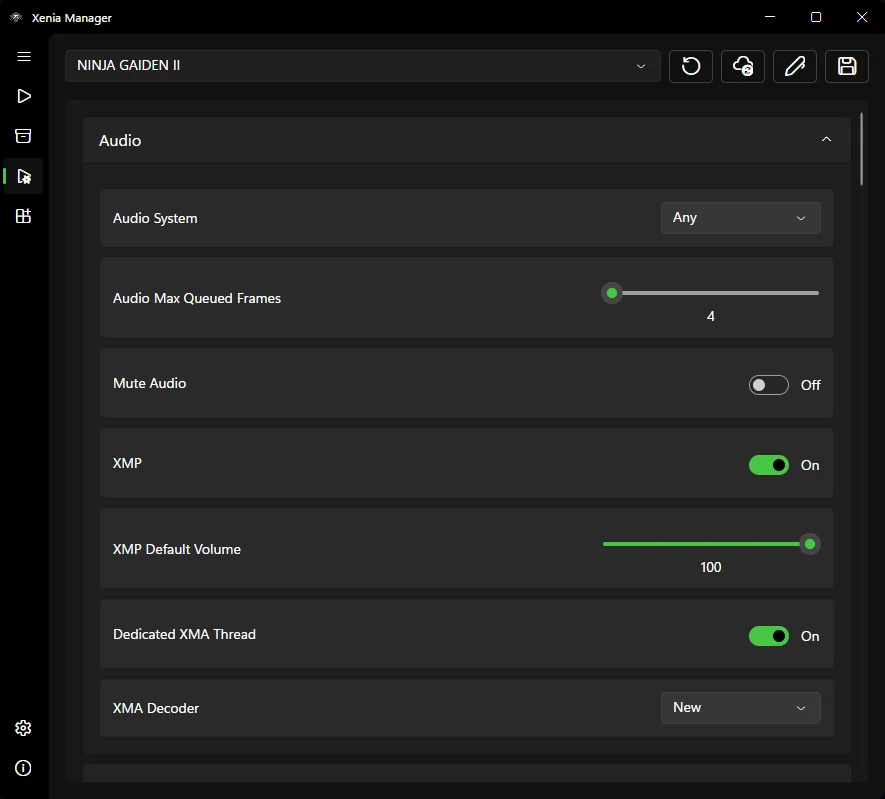
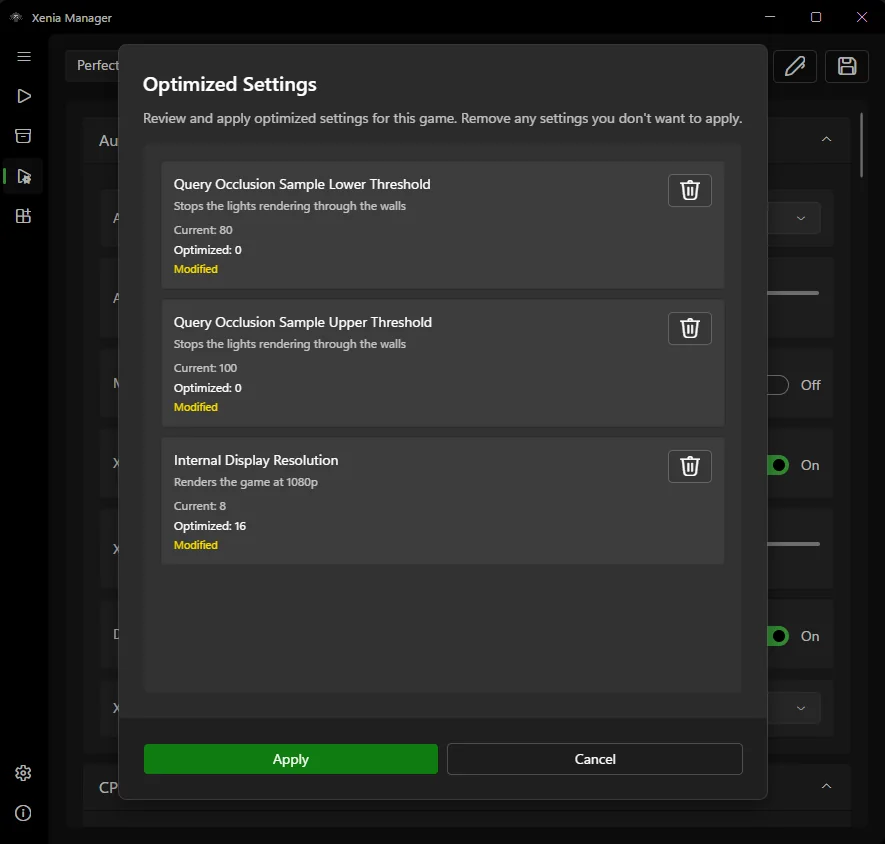
Xenia Manager exposes emulator settings in a structured editor and can show optimized suggestions before they are applied. Review every proposed change, remove options you do not understand, save the profile, and record the game, emulator build and test scene.
The official screenshot shows that optimized values are presented as individual changes rather than a magic speed button. Apply only relevant items, test immediately, and undo the last change if visuals, audio or frame pacing become worse.
Graphics
Keep the renderer that already boots the game. Changing D3D12 or Vulkan, internal display resolution, VSync and presentation options at the same time makes failures difficult to diagnose. Start at native resolution and increase one step only after a repeatable scene is stable.
If a patch requires VSync=false or a letterbox option, treat it as a patch-specific dependency rather than a global recommendation. Check the Xenia patches guide, note the exact patch and test speed as well as frame rate. A high FPS counter is not useful if game logic runs too fast.
Per-game profiles
A setting that helps one title can cause artifacts, crashes or broken audio elsewhere. Use a per-game configuration whenever Xenia Manager offers one, name the profile clearly, and preserve a clean global baseline.
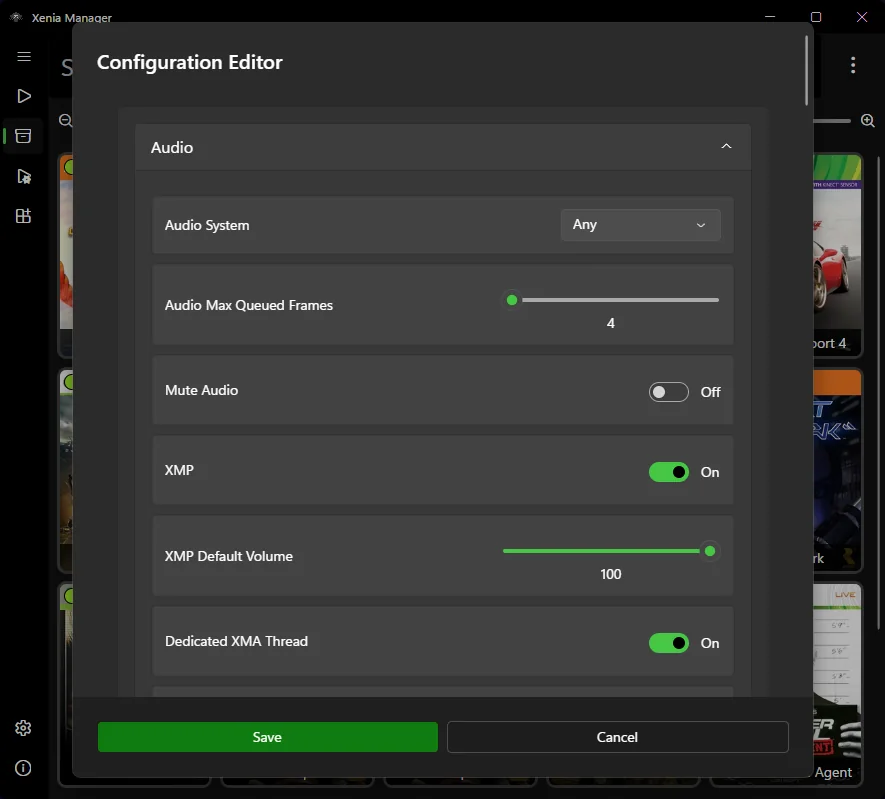
The configuration editor groups settings by subsystem, which makes one-variable testing easier. Save only after you can reproduce the result, then keep a note with the title update, patches, DLC, renderer, resolution and emulator build.
CPU and audio
CPU timing, thread and synchronization options can affect speed and stability, but they are poor first-line tweaks. Leave them at current defaults unless an official issue, compatibility report or maintained patch explains the exact change.
For audio crackle, test a consistent scene and confirm the game is not simply running below full speed. Try the default audio system first. If you adjust queued frames or decoder behavior, change one value, restart when required, and compare the same scene.
Troubleshooting
Record the current Xenia or Canary build, driver version, game title update, patches and baseline result. Change one option, restart the emulator if the setting requires it, and test the same scene for several minutes. Keep the change only when the improvement is repeatable.
If performance becomes worse, restore the last known-good profile instead of adding more tweaks. Recheck folders with the Xenia Manager setup guide, verify the current build through the official-source download guide, and separate emulator problems from game compatibility limits.
Safe optimization
Record the build or release before changing settings.
Disable unrelated patches and test native resolution.
Use the same save, camera angle and duration.
Prefer a documented game-specific option.
Check stability, visuals, audio, speed and frame pacing.
Keep a per-game profile only when the gain is repeatable.
Related resources
Fix folders, builds and first-run paths.
Open setup guideUnderstand experimental build tradeoffs.
Read Canary guideInstall game-specific patches safely.
Read patches guideCheck game-specific limitations first.
Check compatibilityConnect Xbox, PlayStation and Switch Pro controllers and fix detection problems.
Open controller guideRefresh missing covers and correct game metadata.
Open cover art guideIsolate crackling, missing music and audio delay one variable at a time.
Open audio guideFix wrong config paths when games close before Xenia launches.
Open troubleshooting guideFAQ
There is no universal preset. Use defaults as the baseline, then apply only documented per-game changes.
Keep the renderer that works on your hardware and game. Switch only for a reproducible issue or current game-specific guidance.
Stabilize the game at native resolution first, then raise internal resolution one step and retest the same scene.
Use a current build, one change at a time, per-game profiles and a repeatable test scene. Roll back any change that does not produce a clear gain.
No. Some issues are emulator or game-specific limitations. Check current compatibility reports before spending time on tweaks.
No. Xenia and Xenia Manager do not include games, ROMs or ISOs. Use legally obtained game content.