
Record the baseline
Write down the build tag, game revision, renderer, profile and the exact scene where the audio fails.
audio troubleshooting guide
Xenia audio crackling is usually easier to isolate than to fix by guessing. First decide whether the popping, stutter, delay or missing music happens in every game or only one title. Then keep the build, renderer, patches and controller unchanged while you test one audio-related variable at a time. This guide checked Xenia Manager 4.3.2 and Xenia Canary a5262a9 on August 22, 2026; release tags can change, so use the official project pages as the source of truth.
| Crackling or popping everywhere | Test the same build and renderer with audio queue/backend changes one at a time; do not change patches at the same time. |
|---|---|
| Only one game stutters | Compare a clean per-game profile, Title Update and patch state before changing global audio settings. |
| No music but effects work | Check the game revision, audio decoder behavior and compatibility notes before assuming the output device is broken. |
| Audio is delayed | Repeat the test in a fixed scene, note whether video is also delayed, and compare Master with Canary before changing several timing options. |
| Issue started after an update | Keep the previous build and profile, reproduce the same scene, then roll back if the new Canary build is the only changed variable. |
quick answer
If Xenia audio crackling appears in every game, begin with a clean baseline: close Xenia, record the active build and content path, reopen one known-good title and avoid patches, DLC and experimental graphics changes. A repeatable scene is more useful than a menu because it lets you compare the same audio transition after every change.
If the problem appears in one title only, do not immediately change the global audio setup. A game-specific patch, Title Update, renderer path, timing behavior or Canary regression can sound like a hardware problem. Test the same title with a clean per-game profile and write down what changed.
The safest order is build and source check, clean profile, audio baseline, one queue or backend adjustment, then a Master-versus-Canary comparison. Stop when the symptom disappears and keep the working profile. Do not apply a large preset that makes it impossible to identify the cause.
scope the fault
Use one title that normally reaches gameplay and one short, repeatable scene. Note whether crackling begins at boot, during a cutscene, when a menu opens, after loading a save or only when the scene becomes busy. Also note whether the image stutters at the same moment. That distinction separates an audio-buffer symptom from a broader performance or timing problem.
Run the same test with the current Xenia build and, if the title is known to behave differently, a current Canary build. The official Xenia Canary release page is the correct place to read the tag and assets; this page does not host emulator files or mirrors. When a new build is the only meaningful change and the old folder still works, record the result as a possible regression instead of rewriting every setting.
Keep the content revision stable while testing. A Title Update, DLC package or patch can change timing and audio behavior. If you change the emulator, patch and game files together, you will not know which layer fixed the crackle or created a new delay.
safe baseline
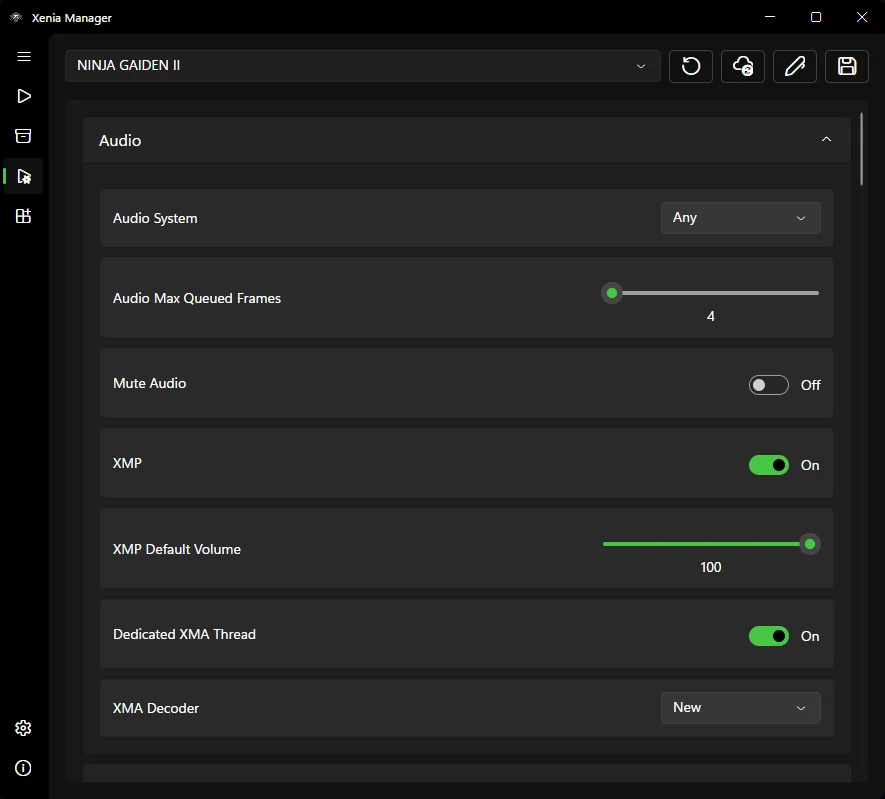
Start from the working default audio backend and change only the setting that is directly related to the symptom. Queue size, decoder behavior, synchronization and timing controls can interact with performance, so a higher-looking value is not automatically better. Make a note of the old value before each test and return to it when the result is worse.
Prefer a per-game profile when Xenia Manager provides one. A value that removes crackle in a demanding title may add delay or distort another game. Keep the global profile conservative, name the per-game profile after the title and symptom, and avoid copying a patch-specific recommendation into every game.
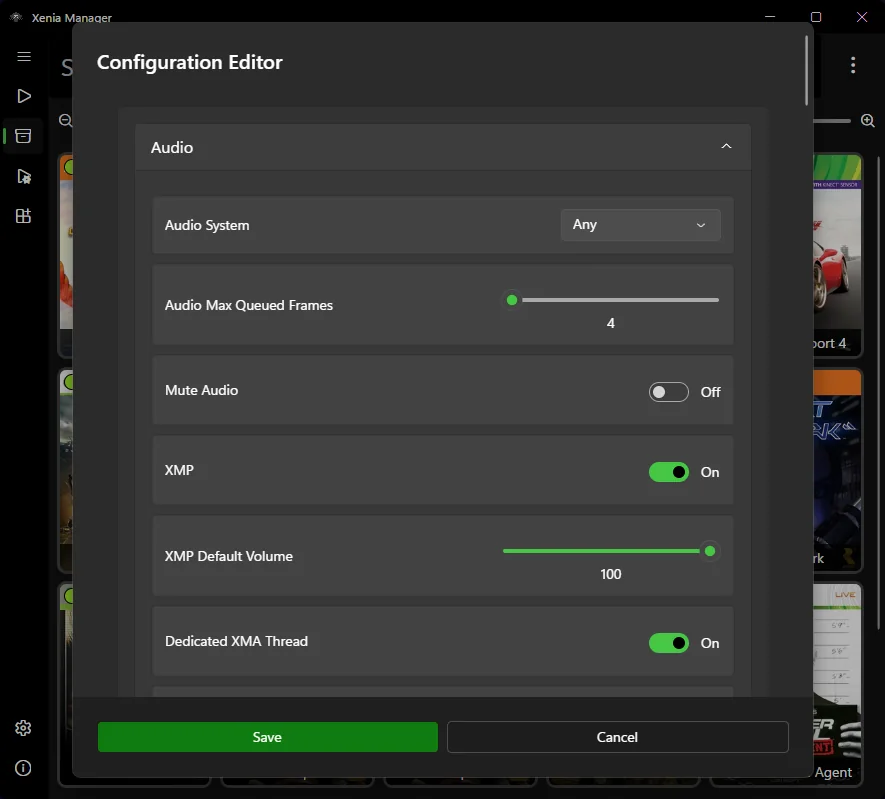
The official settings screenshot is useful for locating the editor, but it does not establish a universal audio preset. Treat any community recommendation as a hypothesis that must be tested against your own build, output device and repeatable game scene.
symptom fixes
First, close other software that is competing for the audio device and repeat the test with the same output device. This is a local diagnostic step, not a claim that the emulator is always at fault. If the crackle disappears only when another application is closed, record that condition instead of masking it with a large emulator preset.
Next, compare a clean profile with your current profile. Disable only the last patch, optimization or timing change that was introduced before the symptom appeared. If the issue is gone, re-enable changes one by one. This is especially important for 60 FPS or frame-pacing patches, because a game can run too fast while the audio appears to crackle or lose sync.
If the audio becomes worse after switching to Canary, return to the previous build and reproduce the same scene. Keep the new folder for later testing rather than deleting it. The Xenia Canary update guide explains the backup, controlled test and rollback pattern; use it whenever an update is the only new variable.
When no change affects the symptom, write a compact report: exact build tag, game title and revision, renderer, resolution, patch/DLC state, scene, audio symptom, whether video also stutters, and whether Master or Canary changes the result. A useful report is more actionable than saying that Xenia audio is bad.
patch and timing check
A frame-rate patch can affect game logic, frame pacing and audio timing at the same time. If the game is running too fast, voices drift, music loops early or effects crackle only after a patch is enabled, test the unpatched game first. The Xenia patches guide explains how to match a patch to the title and module hash without treating every patch as a global setting.
If a game works on Master but crackles on Canary, do not infer that every Canary build is broken. Record the exact tags and report the title-specific result. Canary is useful for fixes that have not reached the conservative branch, but an experimental build can also expose a regression for one game.
If the sound breaks after an update, use the Xenia Canary rollback checklist and keep the previous build. If the failure is accompanied by a missing configuration file or an early close, read the configuration-file troubleshooting guide before changing audio values.
no music and delay
When effects play but music is missing, compare the exact game revision and compatibility notes before changing the operating-system output. Some titles have game-specific audio behavior, and a compatibility label such as boots or playable does not mean every audio path is perfect. Use the Xenia compatibility list guide to record the detail instead of relying on a single status word.
For audio delay, check whether the picture is delayed too. If both picture and sound move together, the primary issue may be performance or timing rather than the audio backend. If only sound lags, keep the scene fixed and test one queue or synchronization option at a time. Do not combine this test with a resolution, renderer or patch change.
If saves or profiles changed during the experiment, stop and protect them before further testing. The Xenia save files guide covers active content paths and backups; an audio fix is not useful if it accidentally hides a profile or save-path problem.
report and rollback
A reproducible report should identify the emulator build, game title, Title ID or revision when known, Title Update and DLC state, patch state, renderer, resolution, controller path, active profile and the exact scene where audio fails. Add a short description such as crackling, missing music, delayed dialogue, repeated loop or stutter during busy scenes.
Include what you tested and what did not change. For example: clean profile works on Master; Canary a5262a9 crackles after loading a save; disabling the patch removes the symptom; the same output device is used in both tests. This format helps separate an emulator regression, a game compatibility limitation and a local configuration mistake.
Keep the working folder and profile until the result is stable for more than one short launch. If a later change makes the audio worse, return to the last known-good state and change one layer again. That disciplined rollback path is the main protection against turning a small crackle into a library-wide configuration problem.
controlled troubleshooting path
Write down the build tag, game revision, renderer, profile and the exact scene where the audio fails.
Separate crackling, missing music, delay and game-speed problems; note whether video stutters too.
Test without the last patch, optimization or timing change so the global baseline remains understandable.
Adjust only the relevant queue, backend or synchronization option, then repeat the same scene.
If the issue began after Canary changed, test the previous known-good build without changing the game files.
Save the working profile and report the exact combination, or return to the previous folder when the regression is repeatable.
related Xenia guides
Start from a conservative renderer, resolution, CPU and audio baseline before changing one variable.
Open settings guideCheck patch matching, 60 FPS behavior, frame pacing and rollback when audio changes with a patch.
Check patchesBack up the working build, test the same scene and roll back when a new Canary build regresses.
Review rollbackCompare conservative and experimental builds without changing several settings at once.
Compare buildsRead detailed compatibility notes instead of treating boots or playable as an audio guarantee.
Read compatibilityFix early launch and misplaced configuration problems before treating them as audio failures.
Fix config errorsaudio FAQ
The cause can be a build regression, a game-specific compatibility issue, a patch or timing change, a per-game profile, or an audio queue/backend setting. Reproduce one scene with a clean profile and change one variable at a time before choosing a cause.
Start with the working default audio baseline, repeat the same scene, remove the last patch or optimization change, and compare a clean profile. If the issue began after a Canary update, test the previous build before changing resolution or renderer settings.
Check the game revision, Title Update, compatibility notes and any game-specific patch before assuming the output device is broken. Record the exact title and scene because playable status does not guarantee every audio path.
It can change frame pacing or game timing, so test the unpatched game first. If the crackle, speed or audio sync problem disappears, keep the patch as the suspected variable and verify its title and module-hash match.
Use the build that gives a repeatable result for the title. Canary may contain a game-specific fix but can also expose a regression; keep a known-good Master or older Canary folder so you can compare and roll back.
No. Xenia Manager organizes emulator builds and settings but cannot guarantee one audio result for every title, output device or Canary build. Use the current official release as a baseline and test the affected game separately.
Include the emulator tag, game title and revision, Title Update/DLC, patch state, renderer, resolution, profile, repeatable scene, exact symptom and results on another build or clean profile. This makes the report reproducible.
No. Keep the known-good build and profile until the fix survives more than one repeatable session. A preserved rollback path is safer than redoing the entire library configuration after a later regression.