
Confirm the active Xenia build
Launch the game from the same stable or Canary build whose save you want to protect.
save location and backup guide
Xenia normally keeps game progress inside its content folder rather than beside the game file. The reliable way to protect a save is to identify the active Xenia build and profile, open the matching content directory, close the emulator, and copy the complete title folder before changing builds, profiles or PCs.
| Storage root | The active Xenia storage directory; the default content root is usually a content folder inside it. |
|---|---|
| Profile folder | A 16-character hexadecimal XUID identifies the Xbox profile used for many saves. |
| Game folder | An 8-character hexadecimal Title ID separates one game's content from another. |
| Saved game type | Saved games are stored below the matching profile and title path; DLC and title updates use other content types. |
| Manager shortcut | Xenia Manager's Content Viewer can open the resolved directory for the selected game, profile and content type. |
quick answer
For a normal desktop setup, start from the storage root used by the Xenia build that actually launches the game. Xenia's current source resolves the default content root as a folder named content under that storage root. Inside it, newer profile-aware layouts commonly follow content/XUID/TitleID/content-type/. Older games, older builds or migrated data may use a simpler title-based layout, so do not move folders only because their names look similar.
The fastest safe method is not guessing a Windows AppData path. Open the exact Xenia or Xenia Canary build from Xenia Manager, confirm its content-folder setting, then use the manager's Content Viewer or open-directory action. This avoids backing up an unused content folder while the active build writes somewhere else.
official workflow
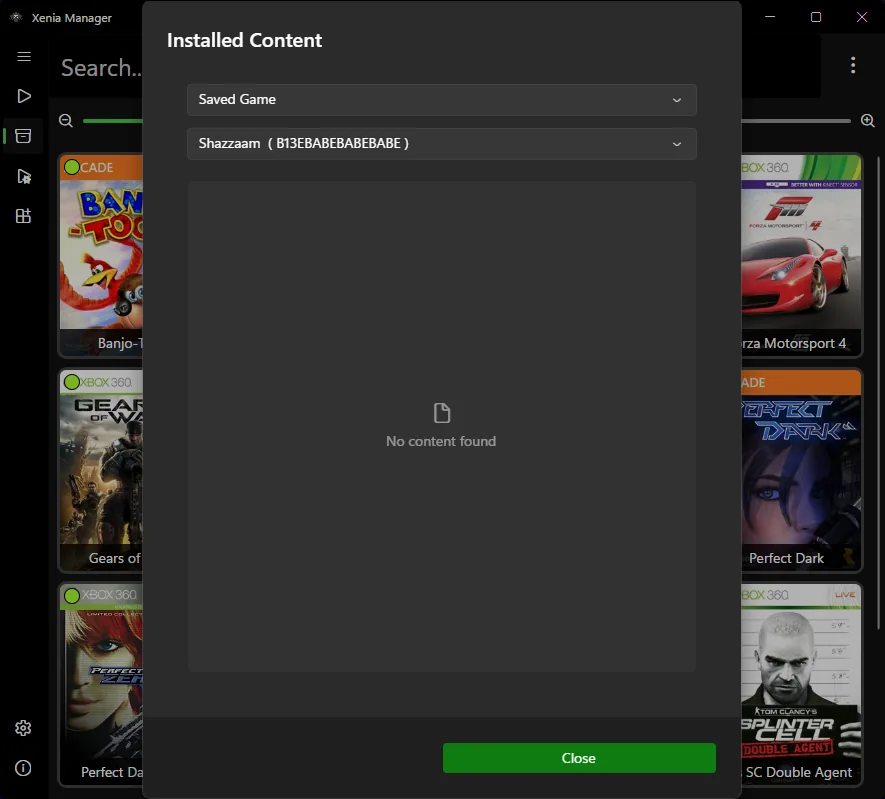
Xenia Manager includes an installed-content view that can filter by content type and profile. Its source constructs a directory from the configured Xenia content folder, the selected XUID, the game's Title ID and the selected content type. That makes it useful when several hexadecimal folders exist and you are unsure which one belongs to the game you just played.
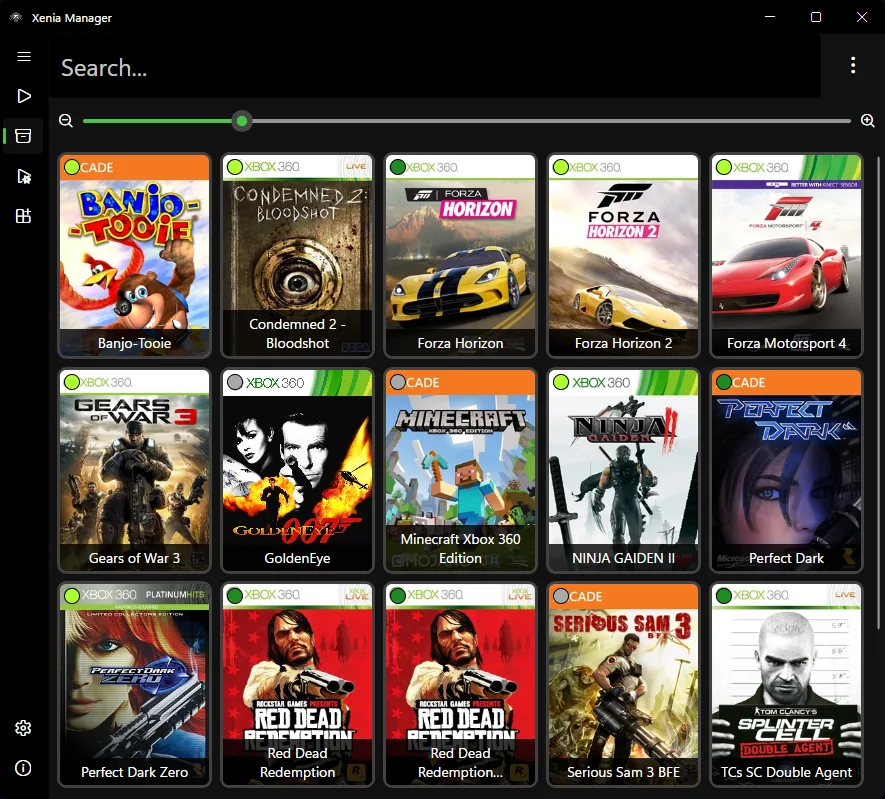
Choose the game in the library, open its content tools, select Saved Game, and verify the profile shown in the selector. If the panel is empty, launch the game, create an in-game save, exit normally and refresh. An empty view can also mean that the wrong Xenia build, content folder or profile is selected.
backup
Create backups while both Xenia and Xenia Manager are closed. Copy the full folder for the relevant Title ID, or copy the complete profile folder when you want a broader backup. Keeping the directory structure intact preserves metadata and prevents a single loose file from being restored to the wrong level. Store the copy outside the Xenia installation so an update, reinstall or cleanup cannot remove both the live data and the backup.
Use dated folders such as 2026-07-16-before-canary-update and include a small text note with the Xenia build, game title, Title ID and profile XUID. Keep at least two generations for long games. Cloud sync is useful only after Xenia has fully closed and the sync client has finished uploading the complete folder.
profiles
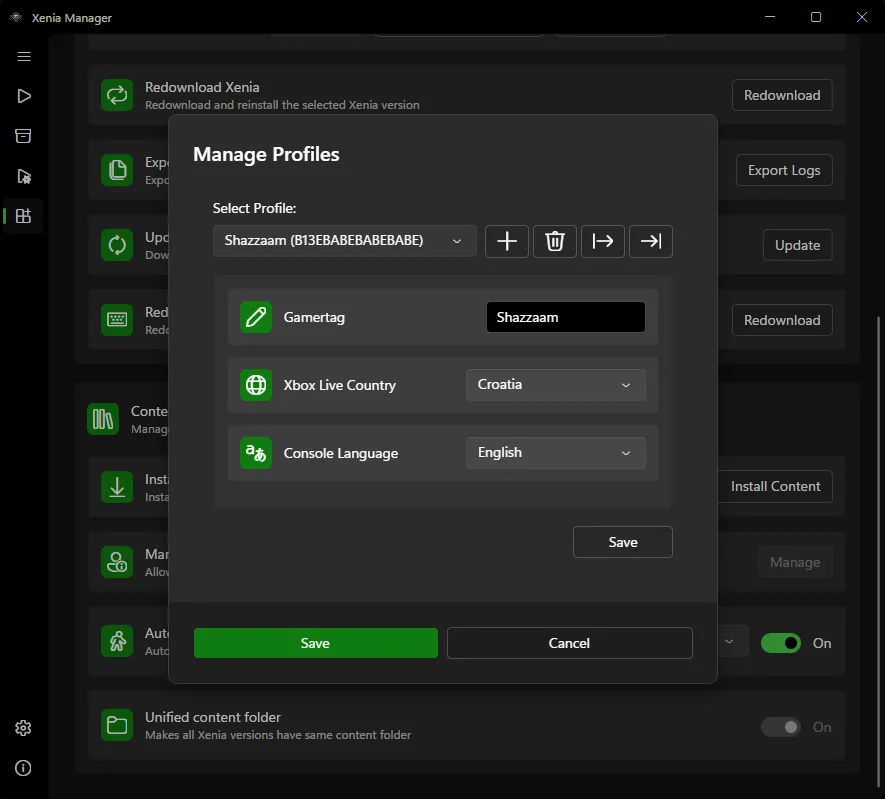
Many Xbox 360 saves are associated with a profile identity. A save can exist on disk yet appear missing when the folder is under another XUID or when the active profile differs from the one that created it. Xenia Manager's profile tools can import, export and manage profiles, and the project documents automatic save backups and an XUID-based backup system.
Before copying data between PCs, record the source and destination profile. If the destination uses a different XUID, prefer the manager's supported import/export workflow rather than manually renaming profile folders. Keep a copy of both versions because game-specific ownership checks can behave differently.
restore and transfer
Install or configure the destination Xenia build first, launch the game once, create a temporary save and close the emulator. This proves the destination content root and generates the expected profile and Title ID folders. Back up that new folder, then place the source data at the same structural level. Restore one game at a time so any mismatch is easy to identify.
When moving between stable Xenia and Xenia Canary, do not assume both builds use the same storage root. Xenia Manager can point different versions at different content folders or use a unified content folder. Confirm the setting before moving anything. If a newer build migrates data, keep the pre-migration backup because going back to an older build may not reverse every change.
troubleshooting
If progress resets, first verify the active build, storage root, profile XUID and Title ID. Then compare modification times between candidate folders. A recently changed folder is usually the active one, but copy it before testing. Check Windows Security, controlled folder access, OneDrive redirection and folder permissions when Xenia cannot write new progress.
If the game reports corruption, restore the newest known-good backup to a fresh test folder rather than repeatedly launching the damaged copy. Some games manage multiple containers or autosave slots, so replacing one file may not be enough. Compatibility problems can also prevent a game from reaching the point where it loads or commits a save; consult the Xenia compatibility guide before treating every failure as a file-path issue.
repeatable procedure
Launch the game from the same stable or Canary build whose save you want to protect.
Exit to the game menu, wait for the save indicator to finish, then close Xenia normally.
Use Xenia Manager Content Viewer or the configured content-folder action instead of searching random folders.
Write down the profile and game identifiers so the backup can be restored to the correct location.
Preserve the full directory structure in a dated backup stored outside the Xenia installation.
Restore to a controlled setup, launch once, confirm progress, and keep the previous copy until the test passes.
related guides
Keep builds, content folders and games organized from the first run.
Open setup guideChange performance options without losing a known-good baseline.
Review settingsUnderstand build differences before moving saves between versions.
Compare buildsKeep patches separate from saved games and other installed content.
Read patch guidesave file questions
Xenia writes progress when the emulated game performs its normal save operation. Wait for the in-game save indicator and close the emulator normally before copying files.
Start from the active Xenia storage root and its content folder. Profile-aware saves commonly follow content, XUID, Title ID and saved-game content folders; the configured root can differ between builds.
Yes, but first create a test save on the destination, confirm the same game and profile structure, close Xenia, back up both sides and restore the complete source folder at the matching level.
The most common causes are the wrong content root, XUID profile, Title ID, build or folder level. Permissions and game compatibility can also prevent saves from loading.
The official project documents save import/export, profile management and XUID-based backups. Use the supported manager workflow when profile identity may change.
A unified folder can simplify management, but it also means both builds touch the same data. Keep dated backups and confirm compatibility before switching repeatedly.