
Confirm the game and build
Run the game without new patches, record the title update, and use a supported Canary experimental release.
Game patch workflow
Xenia patches can unlock frame-rate, aspect-ratio and game-specific fixes, but they are not games or title updates. Use the official Xenia Canary game-patches repository, keep the patches folder beside xenia_canary.exe, enable only the option you need, and confirm that your game version matches the patch hash.
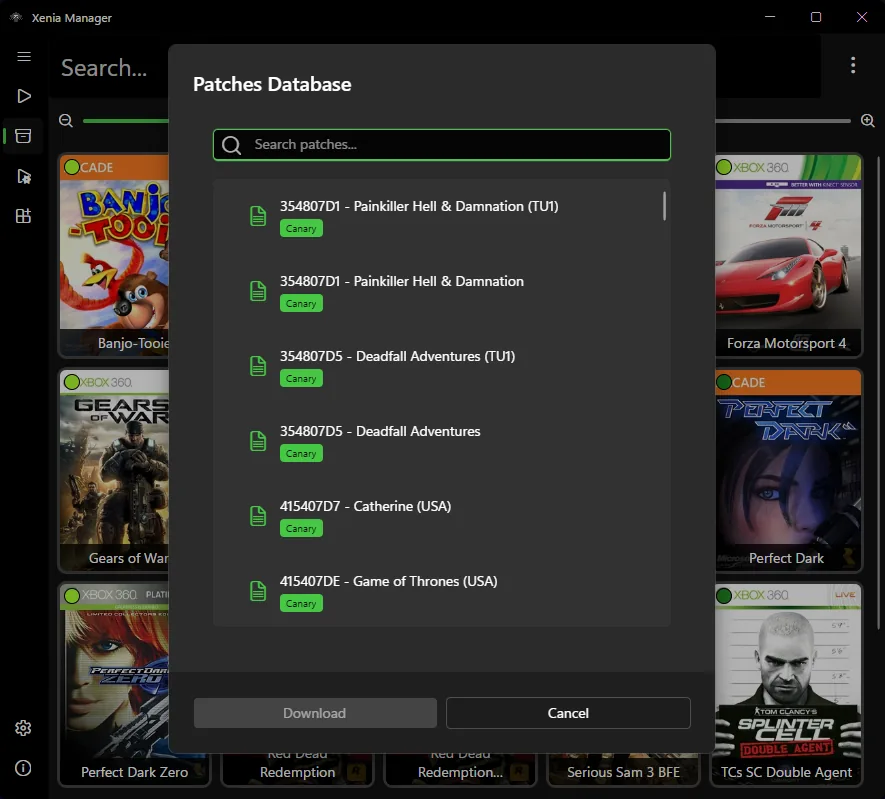
| Official source | Xenia Canary game-patches latest release |
|---|---|
| Supported build | Latest Xenia Canary experimental; master and outdated Canary builds are not supported |
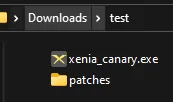
| Folder location | Extract patches beside xenia_canary.exe |
| Game requirement | Match the Title ID, title update and game module hash |
| Safety boundary | Do not remove or edit a patch hash to force a mismatch |
Quick answer
Xenia patches are small TOML instructions that change specific game behavior when Xenia Canary loads a matching game module. Common options target 60 FPS, ultrawide aspect ratios, visual effects or game-specific workarounds. They do not contain Xbox 360 games, ROMs, ISOs, DLC or official title updates.
Start from a game that already launches, record the current Canary build and game title update, then enable one patch option. If several changes are applied together, a crash gives no reliable clue whether the patch, emulator build, title update or renderer caused it.
Official method
Download the current game-patches archive from the official GitHub release. Close Xenia Canary, back up any existing patches folder, then extract the new patches folder into the same directory as xenia_canary.exe. Replacing the whole folder is safer than mixing old and new files because removed files can otherwise remain behind.
Xenia Manager users can use its Patch Downloader to fetch supported packages, but the same version rules still apply. The manager simplifies discovery and file placement; it does not make an incompatible patch compatible.
Choose carefully
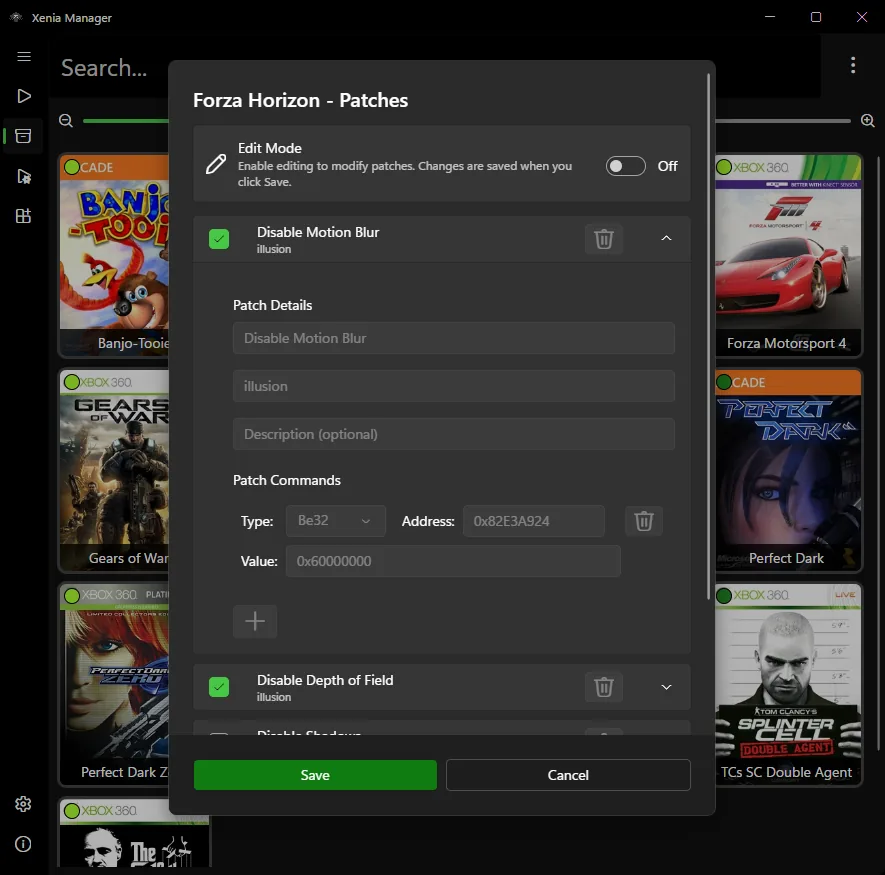
Open the .patch.toml file whose Title ID and game name match your copy. Find the exact option you want and change only its is_enabled value from false to true. Leave unrelated options disabled for the first test.
Hashes verify the executable module for which the patch was written. If your region or title update has a different hash, do not comment it out or modify it to force the patch. The official repository warns that this can cause crashes; the patch should be ported to the correct version.
Test result
Launch the game and look for [Patches Applied] in the Xenia Canary title bar. Test a repeatable scene rather than judging from a menu. For a frame-rate patch, compare frame pacing and game speed; for an aspect-ratio patch, inspect HUD placement, cutscenes and black bars.
A patch can load successfully and still be unsuitable for a particular scene. Keep notes with the patch name, Canary release, title update, renderer and result so rollback remains reproducible.
Troubleshooting
Confirm that apply_patches is true and that the patches directory is beside the executable actually being launched. Multiple Canary folders are a common cause: the user edits one folder while Xenia Manager launches another.
If [Patches Applied] never appears, check placement, is_enabled, Title ID and hash. If the game crashes after the message appears, disable the last option, restore your backup and retest without changing the renderer or emulator build at the same time.
Frame rates above 60 FPS may require VSync=false, while aspect-ratio patches can require present_letterbox=false. These are patch-specific requirements, not universal settings.
Updates
Patch repositories and experimental Canary releases change frequently. Save the archive name or release date you used, and update the emulator and patch set in controlled steps. Before replacing files, back up working patch TOML files and your Canary config.
Use the Xenia compatibility list guide before assuming a patch can fix an unsupported title. Read the Xenia Canary guide for build tradeoffs and the Xenia Manager setup guide when paths are unclear.
Safe install
Run the game without new patches, record the title update, and use a supported Canary experimental release.
Get game-patches.7z from the official release page or use Xenia Manager Patch Downloader.
Close Canary, back up the old folder, and extract patches beside xenia_canary.exe.
Match the Title ID, game title, region and title update notes.
Change only is_enabled to true and keep all hashes unchanged.
Look for [Patches Applied], test a repeatable scene and record the result.
Official and internal resources
Read releases, installation requirements and patch files.
Open repositoryVerify the current release from official sources.
Check download guideUnderstand experimental builds and rollback planning.
Read Canary guideCheck known issues before adding patches.
Check compatibilityFAQ
Put patches in the same directory as xenia_canary.exe. Confirm which executable Xenia Manager launches.
The official repository says patches are not supported on master or outdated Canary versions.
No. TOML files are instructions and contain no games, ROMs, ISOs, DLC or title updates.
Your game version, region or title update likely differs. Do not bypass the hash.
Its Patch Downloader and configurator simplify the workflow, but compatibility still depends on exact versions.
Some patches require VSync=false. Check the patch notes and game speed.