
Confirm the title
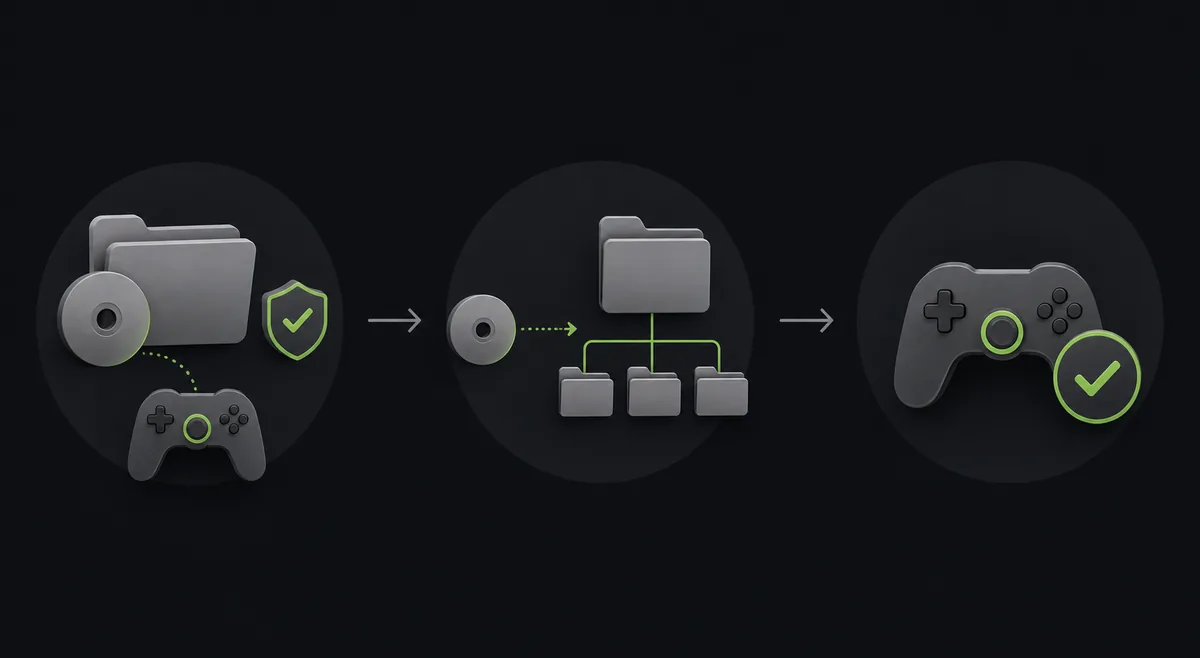
Match the game, region, Title ID and any required Title Update before copying content.
DLC installation and troubleshooting
If you are looking for a safe Xenia DLC installation workflow, start with the game and emulator build you already know. Close Xenia, back up the active content folder, confirm the Title ID and region, place legally obtained DLC in the matching content location, then refresh and test the game without changing patches or graphics settings at the same time. This guide was checked on August 22, 2026 against Xenia Canary a5262a9, Xenia Manager 4.3.2 and the current game-patches release; official release pages remain the source of truth when those identifiers change. This site does not host ROMs, ISOs, games or copyrighted DLC.
| Official source | Use the official Xenia Canary release page and Xenia Manager project page for emulator files. The Windows asset direct links were not used here because stable HTTP 200/206 verification timed out; this page uses official release-page fallbacks. |
|---|---|
| Content match | Match the game's Title ID, region, content revision and any required Title Update before troubleshooting the folder. |
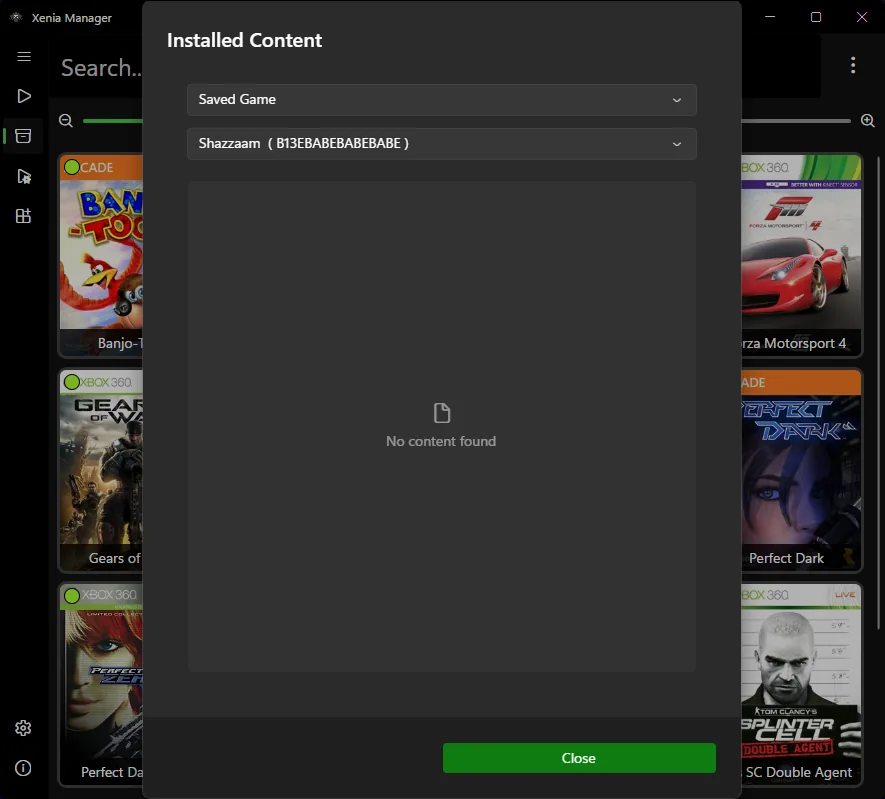
| Where to start | Use the active Xenia storage root and its content tree. Xenia Manager Content Viewer is safer than guessing a random Windows path. |
| Manager's role | Xenia Manager can organize builds and expose content tools, but it cannot make an incompatible DLC package compatible. |
| Download boundary | This guide does not link to ROMs, ISOs, game dumps or copyrighted DLC. Use content you are legally allowed to use. |
quick answer
The short answer is: confirm the exact game and build, close Xenia, back up the active content directory, identify the matching Title ID and profile, place your legally obtained DLC in the content location used by that setup, refresh the manager or restart Xenia, and verify the add-on inside the game. Do not paste DLC into the folder that contains the game executable or assume that every title uses the same visible folder name.
Xenia DLC problems are usually matching problems rather than a missing download button. A package can be present and still remain invisible when the Title ID, region, profile, content type, Title Update or active storage root is different. Keep the first test simple: do not update Canary, replace patches, change the renderer and move saves in the same session. One change at a time gives you a result you can reproduce.
Before copying anything, record the game title, Title ID, region, Xenia or Canary build, Xenia Manager version and the content root shown by the active setup. If the source page or package does not identify these details, stop and verify the provenance instead of forcing a folder match.
content path
Start from the storage root used by the Xenia build that actually launches your game. Xenia setups commonly keep installed content below a content directory and separate data by profile, Title ID and content type. The exact path can differ between a portable folder, a redirected storage root, Xenia Master and Xenia Canary, so a path copied from a random video is not proof that it is correct for your PC.
Xenia Manager's Content Viewer is the practical cross-check. Select the game, inspect the profile and content type, and open the resolved directory from the manager rather than browsing unrelated AppData folders. If the view is empty, launch the game once, create a normal save or refresh the library, then confirm the manager is pointing at the same build and content root that Xenia uses.
safe install
Close Xenia and Xenia Manager, then copy the DLC into the content location resolved for the same title and profile. Preserve the package's directory structure; do not flatten every file into the game folder and do not combine content from another region or Title ID. If the official or first-party documentation specifies a content type or folder level, follow that exact instruction. When it does not, use Content Viewer and the active configuration as the source of truth rather than inventing a universal path.
After the copy finishes, reopen the same Canary build, refresh the library or content view and launch the matching game. Check the game's own extras, downloadable-content menu or new item rather than relying only on a file timestamp. If the add-on is missing, stop before changing more files and compare the Title ID, region, profile, Title Update and active storage root in that order.
Keep a dated backup of the working folder. A small note such as 2026-08-22-before-dlc-test should record the build, game revision and content state. This makes rollback straightforward when a game stops booting or a save is no longer detected after a content change.
keep content types separate
DLC is additional game content. A Title Update is versioned game content that may be required for a particular release or add-on. A Xenia patch is a TOML instruction that changes emulator behavior for a matching game module. They can interact, but they are not interchangeable files and should not be copied into the same folder simply because a forum post mentions them together.
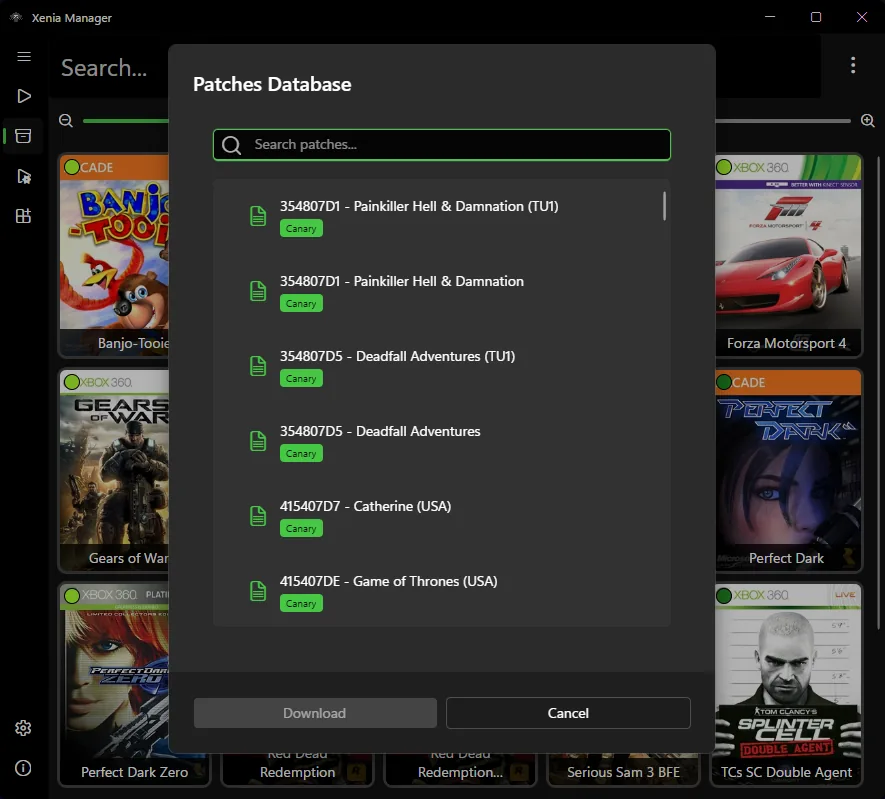
The official game-patches workflow is useful for distinguishing a patch package from installed content. The patch archive and its TOML files belong to the emulator's patch workflow, while DLC belongs to the game's content tree. Test the game without a new patch first, then add one change only if the compatibility notes say it is relevant. This prevents a patch regression from looking like a DLC installation failure.
If a guide tells you to download an all-in-one archive containing a game, emulator, DLC and patches, treat that as a source-verification warning. Use the official emulator release pages and legally obtained game content separately. A page that hides the original source cannot prove that the files match your Title ID or that they are safe to redistribute.
troubleshooting
When Xenia does not see DLC, verify the active build and content root first. Multiple Canary folders are common: a user may copy the files beside one executable while Xenia Manager launches another. Next compare the Title ID and region, then confirm the profile and content type. Finally check whether the game's Title Update is compatible with the DLC. Do not start by deleting the whole content folder.
If the game still does not detect the add-on, remove only the new test copy or restore the dated backup, launch the base game once and record the result. Check Windows permissions, antivirus or controlled-folder access if Xenia cannot write content. An empty manager view can also be caused by a stale library, the wrong XUID profile, an unsupported game state or a build regression rather than a missing folder.
Use the compatibility guide when the game boots but the add-on crashes, disappears after a restart or changes a known working save. Record the Canary tag, game revision, region, Title Update, patches, profile and the exact point of failure. That evidence is more useful than repeating the same copy operation with a different random directory.
version and source notes
The checked references for this guide are Xenia Canary a5262a9, published August 22, 2026; Xenia Manager 4.3.2, published August 20, 2026; and the Xenia Canary game-patches latest release, published July 26, 2026. These are dated source checks, not a promise that the identifiers will remain current. Read the official release pages again before updating a setup.
The Windows asset links were not used as direct download buttons because this environment could not complete a stable HTTP 200/206 verification for the binary responses. The page therefore links to official release pages as a fallback. That is safer than guessing a CDN path, using a temporary signed URL or presenting a mirror as an official file.
Keep the working build, content backup and source note together. If a later Canary update changes content handling, you can reproduce the original test, move one title at a time and return to a known-good state without losing the evidence that the DLC previously worked.
after the test
Once the add-on appears in the game, keep the backup for several sessions instead of deleting it immediately. Load a normal save, visit the content or extras menu and play a repeatable section. This confirms that the content is not merely visible at startup but works with the same profile, Title Update and build that you intend to keep.
If the result is mixed, remove only the new change or choose a separate per-game build. Do not overwrite your only known-good content folder while troubleshooting. A clean baseline, one dated backup and a short source note make it much easier to tell whether the problem came from DLC, a Title Update, a patch, the emulator build or a profile mismatch.
If you ask for help, share the exact build tag, game revision, region, Title ID, content type, Title Update state and error point without uploading copyrighted files or private account data. Those details let other users compare the setup without turning the support thread into an unverified download mirror.
safe install path
Match the game, region, Title ID and any required Title Update before copying content.
Open the same Xenia or Canary executable that Xenia Manager will launch for the test.
Close Xenia and copy the active profile or title folder to a dated backup outside the install directory.
Use the manager's resolved game, profile and content view instead of guessing a random Windows path.
Preserve the package structure and place it at the matching content level; never flatten it into the game executable folder.
Restart or refresh the same build, then open the game's own extras or downloadable-content screen.
Save the build and result; restore the dated backup if the add-on is missing or destabilizes the game.
related Xenia guides
Understand content roots, XUID profiles and Title ID folders before moving installed data.
Check content pathsKeep patch TOML files separate from DLC and troubleshoot version or hash mismatches.
Review patchesBack up and test a new Canary build without hiding a DLC problem inside an emulator update.
Review updatesRecord build, Title Update and content state when an add-on changes a known game result.
Check compatibilityDLC FAQ
Confirm the game, Title ID, region and required Title Update, close Xenia, back up the active content folder, use Content Viewer to locate the matching profile and content location, copy legally obtained DLC without flattening its structure, refresh the same build and verify the add-on in the game.
Use the active Xenia storage root and the matching content tree for the selected profile and Title ID. The exact path can differ between builds, so use Xenia Manager Content Viewer or the active configuration instead of copying a path from an unrelated video.
Not every add-on has the same requirement, but a mismatched or missing Title Update can prevent content from being detected or can cause a crash. Match the game's documented revision and test the base game before adding another change.
No. Xenia Manager can organize builds and expose content tools, but this site does not provide copyrighted game files or DLC. Use content you are legally allowed to use and verify the emulator source through official project pages.
Check the active executable and storage root, then compare Title ID, region, profile, content type and Title Update. Also test without new patches, confirm permissions and restore a dated backup if the change affects a working save.
No. DLC is additional game content, a Title Update is versioned game content and a patch is a TOML instruction for a matching emulator game module. Keep their source, folder and test steps separate.
This site does not link to ROMs, ISOs, game dumps or copyrighted DLC. Use only legally obtained content and the official Xenia Canary or Xenia Manager release pages for emulator software.