
Connect before launch
Use USB first and verify the controller in Windows.
input guide
For most Windows users, an Xbox-compatible pad works with Xenia through XInput as soon as Windows detects it. PlayStation and Switch Pro controllers usually need SDL support or a compatibility layer that exposes one clean virtual controller. This guide shows the shortest setup path and a reliable order for fixing a Xenia controller that is not working.
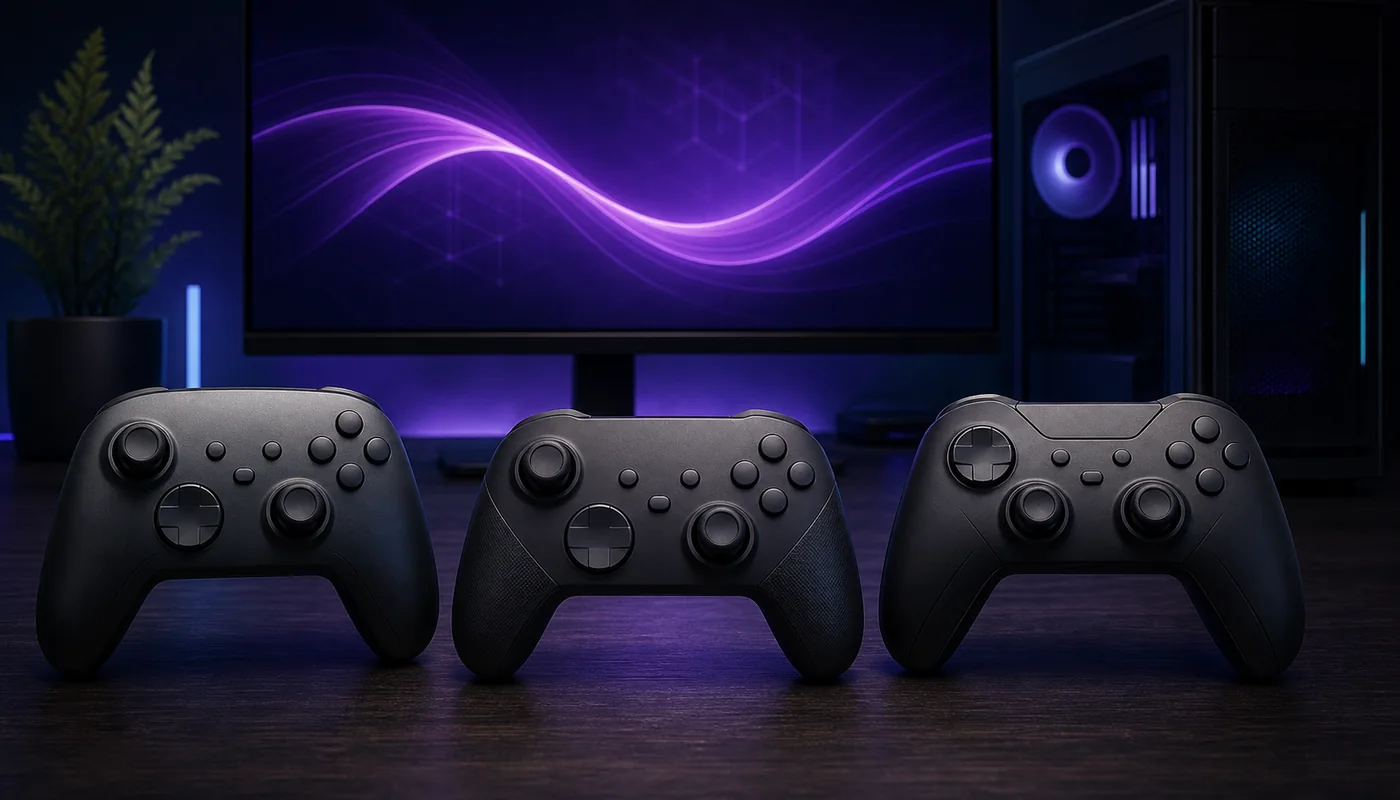
| Xbox 360 / Xbox One / Xbox Series | Use xinput first. Confirm the pad responds in Windows before opening Xenia. |
|---|---|
| DualShock / DualSense | Try sdl in a build that supports it, or expose one virtual XInput pad with a trusted compatibility tool. |
| Switch Pro / generic USB pad | Try sdl. If mapping is incomplete, use a single virtual XInput output and prevent duplicate input. |
| Keyboard | Use winkey only when keyboard input is intended; it is not a controller repair mode. |
quick answer
Connect the controller before launching Xenia. Open Windows game-controller settings or a trusted input tester and verify sticks, triggers and buttons there first. If Windows cannot see the device, changing Xenia settings will not fix the driver, cable, Bluetooth pairing or power problem.
Use one input path at a time. An Xbox-compatible controller should normally use XInput. For PlayStation, Switch Pro and less common pads, SDL can provide broader device support. Avoid running several remappers together because Xenia may receive both the physical pad and a virtual copy.
input backend
Current Xenia source exposes the input systems any, nop, sdl, winkey and xinput. For a normal Xbox pad on Windows, choose XInput. For a supported non-Xbox gamepad, try SDL. Keep any only when automatic selection behaves correctly; an explicit backend is easier to diagnose.
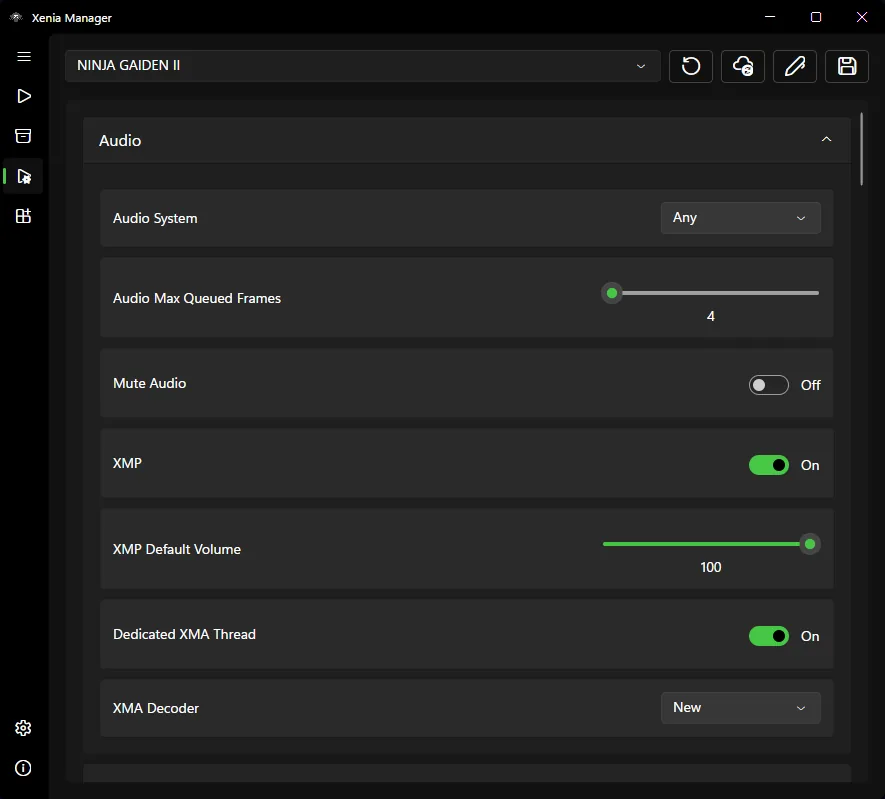
Xenia Manager provides a searchable settings editor. Open the selected emulator build, locate the HID or input-system setting, save, fully close Xenia and reopen it. The official screenshot shows the same settings surface; scroll to the input section rather than changing unrelated audio or graphics values.
not detected
Start outside the emulator, then remove software layers until only one device reaches Xenia. This order separates Windows detection, backend selection and game-specific behavior instead of changing many settings at once.
If Xenia Canary does not register a Pro controller, test SDL first and reconnect before launch. If you use a virtual XInput controller, hide or disable the original device only through the compatibility tool's documented method so one button press does not become two.
per-game checks
A controller that works in one title but not another is usually not a global detection failure. Check the compatibility list, game patches and title-specific reports. Some games require a particular profile, title update or stable/Canary build.
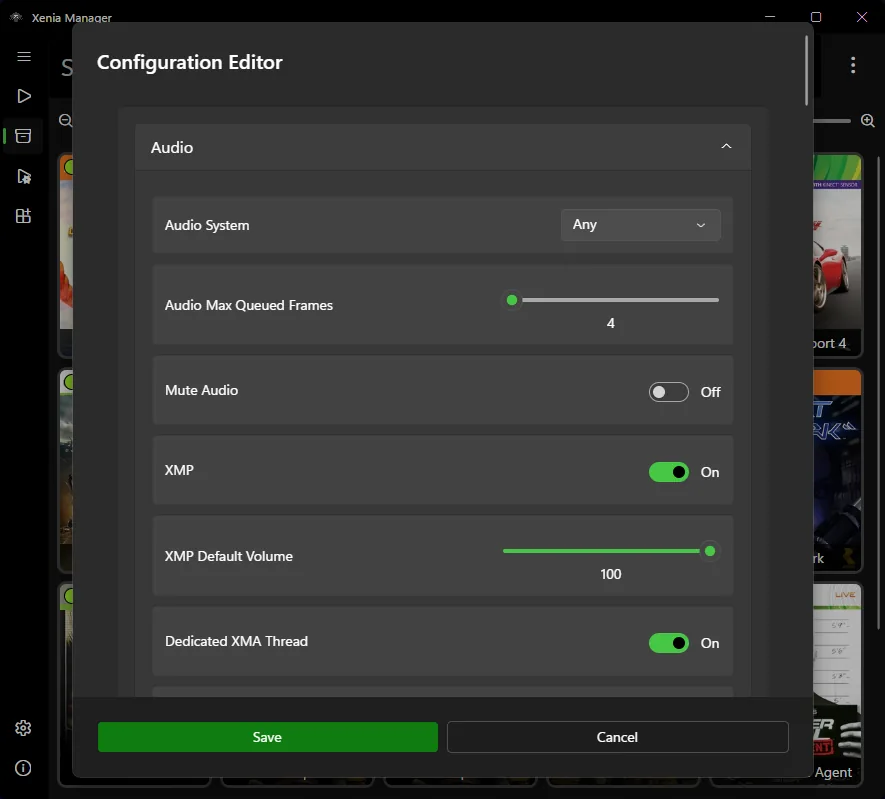
Use Xenia Manager's per-game configuration editor only after the global controller works. Keep a note of the backend, emulator build and any remapper profile. If vibration, dead zones or trigger behavior changes after an update, compare with a clean profile before adding more tools.
clean setup
Use USB first and verify the controller in Windows.
Keep only one remapper or virtual-controller path.
Use XInput for Xbox-compatible pads and SDL for broader pad support.
Close Xenia completely after changing HID settings.
Use a title already known to accept controller input.
Change one option at a time and keep a clean baseline.
related resources
Verify folders, builds and first launch.
Open setup guideUse safe global and per-game configuration.
Review settingsCompare stable and experimental behavior.
Read Canary guideCheck whether the problem is game-specific.
Check compatibilityTest community keyboard-and-mouse input without mixing it into your normal Canary folder.
Read MouseHook guideFAQ
First confirm Windows detects it, then choose XInput for Xbox-compatible pads or SDL for broader controller support. Close duplicate remappers and restart Xenia after changing the backend.
Yes, when SDL recognizes it or a trusted compatibility tool exposes one virtual XInput controller. Avoid sending both the physical and virtual device to Xenia.
It can work through SDL or a compatible virtual XInput layer. If it is not registered, reconnect before launch and remove competing input tools.
Use XInput for Xbox-compatible controllers. Use SDL when you need broader support for PlayStation, Switch Pro or generic controllers.
Xenia is probably receiving both the real controller and a virtual copy. Keep one input path and use the remapper's documented duplicate-device prevention method.