
Confirm the game path
Make sure the drive and watched library folder still exist.
library artwork
Xenia Manager normally turns a scanned game library into a visual shelf with cover art. When a cover is blank, incorrect or attached to the wrong title, start by confirming the game entry and Media ID, refresh the library, and then use the library options or game details editor. This guide separates safe metadata fixes from emulator settings, so you can repair artwork without changing game files or Xenia performance settings.
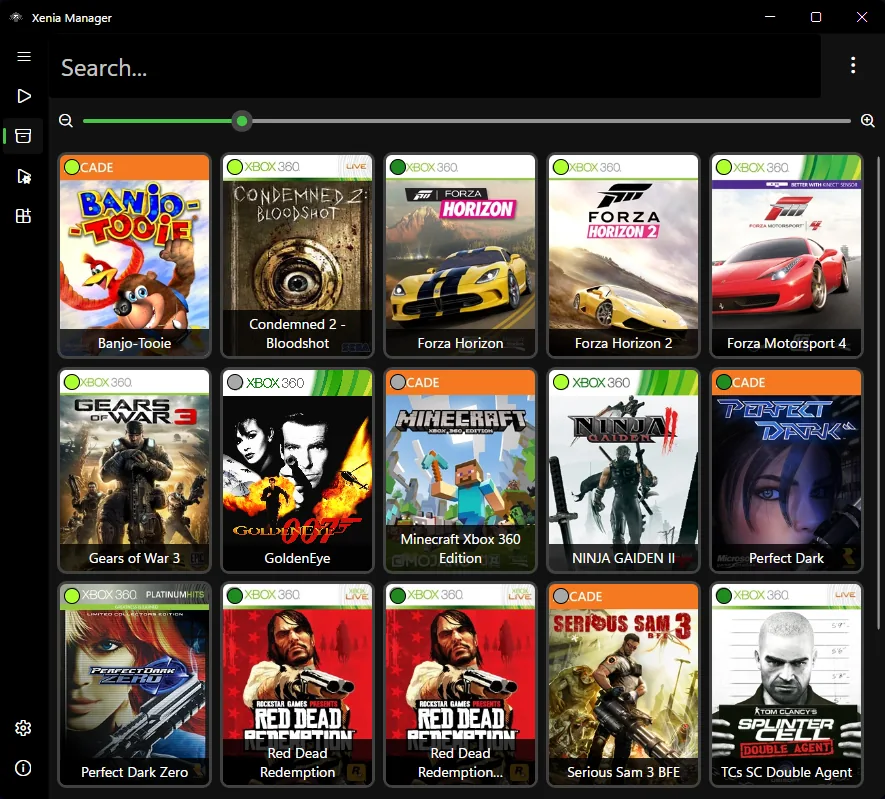
| Blank cover | Refresh the library, confirm the game is recognized, and check network access before editing files. |
|---|---|
| Wrong cover | Open the game details editor and verify the title, Title ID and Media ID belong to the selected game. |
| Duplicate entry | Check whether the same game was added from two folders or appears once as a base game and once as installed content. |
| Covers disappear after moving files | Update the watched game folder, rescan the library and keep one stable path for each title. |
| Only one game is affected | Treat it as a metadata or title-identification issue rather than changing global Xenia settings. |
quick answer
Cover art is part of Xenia Manager's library presentation, not the Xbox 360 game itself. The manager identifies an entry from the scanned path and available title metadata, then displays the matching artwork in the library. A missing image therefore does not automatically mean the game dump is broken or incompatible with Xenia.
Keep the diagnosis narrow: confirm the correct game entry, verify its identifiers, refresh the library and test again. Do not rename game data at random, download unknown cover packs or change graphics settings just to repair a library tile.
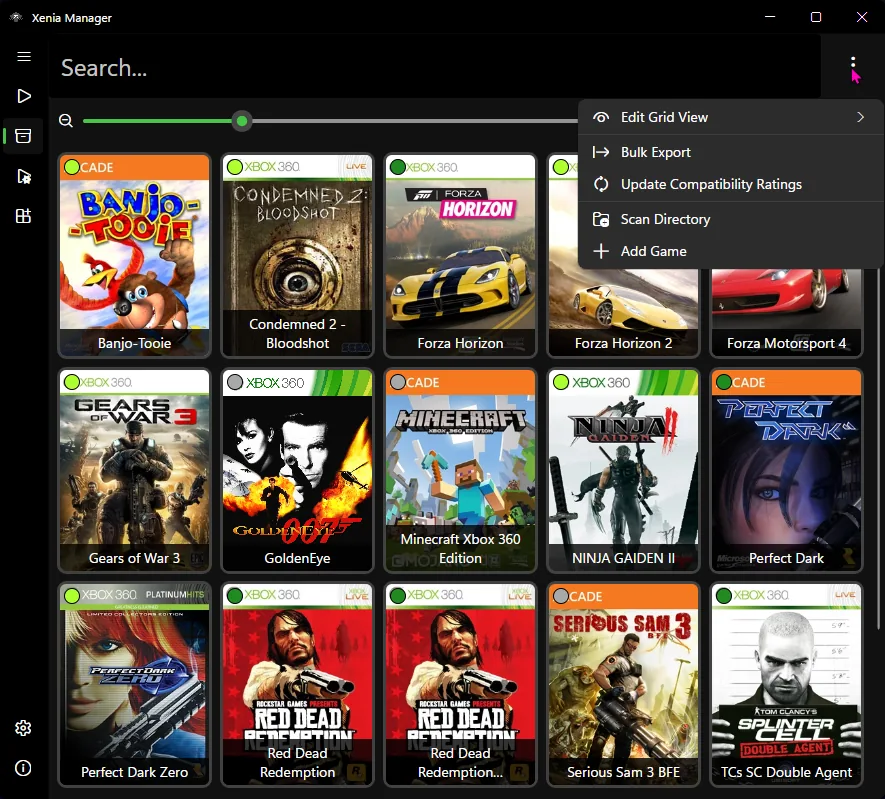
refresh workflow
First close any running Xenia instance, open Xenia Manager and confirm the expected library folder is still configured. If the game was moved, renamed or stored on a disconnected drive, correct that path before rescanning. Refresh the library once and wait for the scan to finish instead of repeatedly restarting it.
If several covers are missing at the same time, check the network, firewall and GitHub access used by the manager before treating each game as a separate problem. If one title alone is wrong, compare its displayed name and identifiers with a known-good entry.
metadata check
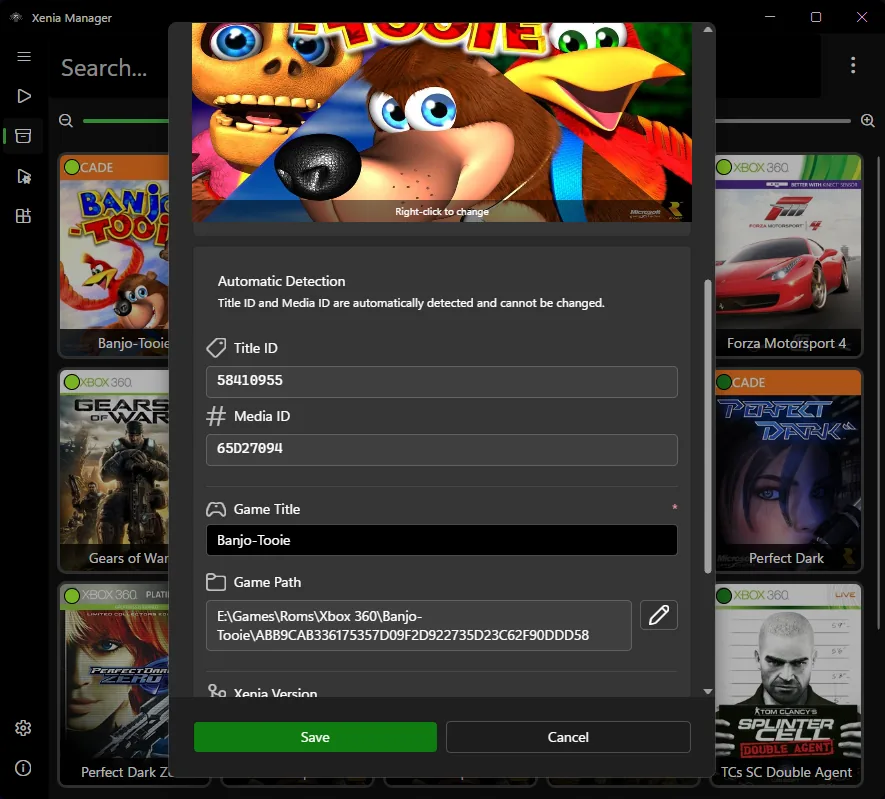
The Game Details Editor is the best place to investigate a single incorrect tile. Confirm you opened the intended game, then review its title and identifiers. Media ID matters because different regional or update variants can share a familiar game name while using different metadata.
Change only fields you can verify. Keep a note of the previous value and refresh the library after saving. If the title launches correctly but artwork remains wrong, the issue is usually library metadata rather than a reason to replace the game files.
troubleshooting
For a stale image, refresh first and restart Xenia Manager once. For duplicates, compare paths and remove only the unintended library reference; do not delete the underlying game until you know which entry is correct. When a removable drive changes its Windows drive letter, restore the expected path or update the watched folder.
Avoid third-party cover archives that bundle executables or unclear scripts. Xenia Manager's official GitHub project and its release page are the safest references for current behavior. The latest verified release during this review is version 4.3.2, published August 20, 2026, with the official xenia_manager.zip asset.
boundaries
Cover art does not improve frame rate, compatibility, patches, controller detection or save behavior. Use the dedicated Xenia settings guide, compatibility list guide, patch guide or save-file guide for those issues.
Xenia Manager is a library and management layer; it still needs an actual Xenia build to launch games. It does not include ROMs or copyrighted game content, and this guide does not recommend downloading cover bundles from unverified mirrors.
six-step repair
Make sure the drive and watched library folder still exist.
Run one complete rescan and wait for it to finish.
Decide whether the issue affects one game or the whole library.
Use Game Details Editor to check the title, Title ID and Media ID.
Close Xenia Manager fully, reopen it and verify the refreshed tile.
Save manager settings before removing caches, duplicate paths or custom metadata.
related guides
Configure folders, builds and the first library scan.
Open setup guideTune emulator options without mixing them with cover metadata.
Review settingsBack up profiles and saves before reorganizing game folders.
Open save guideVerify the current first-party version and release asset.
View release 4.3.2FAQ
Confirm the watched game folder is available, run one complete library refresh, wait for the scan to finish and restart Xenia Manager once.
The selected entry may have incorrect title metadata or Media ID. Open Game Details Editor, verify the identifiers and refresh the library after saving.
The manager can populate library artwork from recognized title metadata, but results depend on correct game identification, network access and the current manager behavior.
You can organize the library in Xenia Manager, but an installed Xenia build is still required to launch games. Xenia Manager is not the emulator itself.
Normal library artwork and metadata changes should not modify game data or saves, but back up manager settings and save files before deleting caches, paths or duplicate entries.