
Read the current source
Open the official Xenia project notes and the maintained instructions for your distribution or Proton path.
Linux and Proton setup
Xenia Linux can work through a Linux-oriented build, Proton or a maintained packaging workflow, but it is still an experimental Xbox 360 emulation path. Start with one legally obtained game, keep the emulator and prefix separate from your Windows setup, and record the exact build, renderer and controller path before changing performance options.
| Support reality | A game that launches may still need manual graphics, input, audio or prefix settings. Treat each title as a compatibility test. |
|---|---|
| Recommended start | Read the current official Xenia notes and the maintained distribution or Proton documentation before choosing a build. |
| Baseline | Use one emulator folder, one prefix, one controller and one repeatable game scene before tuning performance. |
| Manager boundary | Xenia Manager is documented around a Windows workflow; it is not a guaranteed native Linux replacement. |
quick answer
Yes, some users can run Xenia Linux through Proton, a community package or another maintained compatibility layer. The result depends on the Xenia build, your distribution, graphics driver, prefix, controller stack and the individual Xbox 360 game. A successful launch is evidence for that combination, not a promise that every title will work.
The official Xenia project site is the source for the emulator family and current project direction. Read its notes before copying a command from an old video. For a handheld Linux path, the Steam Deck guide covers EmuDeck and Proton details; this page keeps the scope broader so the same reasoning applies to a desktop distribution.
choose a route
There is no single Xenia Linux install that fits every distribution. A package managed by your distribution may use different paths from a portable Windows executable launched through Proton. EmuDeck can simplify the Steam Deck path, while a desktop user may prefer a dedicated prefix and a manually selected executable. Pick one route first and keep its files isolated.
Check whether the package is native, Windows-based or a wrapper around another runtime. Read the maintained instructions for dependencies, Vulkan or Mesa requirements, controller permissions and expected folder locations. Do not mix a package's configuration with a random Proton prefix just because both folders contain a file named config.toml.
clean baseline
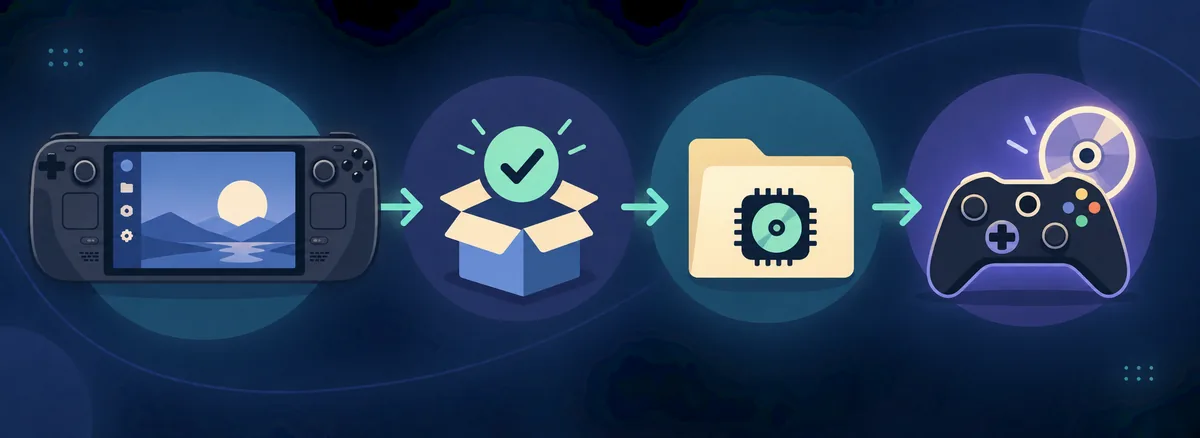
For a Xenia Linux baseline, install the documented runtime or package, then launch Xenia once before adding custom settings. Confirm that the window opens, the input system sees a controller and the log can be written to a location you can inspect. If the program closes before showing a window, fix the runtime or permission issue first; game files and patches are not useful evidence yet.
Add one game from your own legal dump and use the default graphics profile. Choose a repeatable scene, such as the same menu or a short area after loading a save. Note whether the title reaches gameplay, whether sound starts and whether input remains responsive. A baseline that can be repeated is more valuable than a one-time launch with many tweaks.
graphics and input
A Xenia Linux setup adds more translation layers than a Windows baseline: the desktop display server, graphics driver, Vulkan or OpenGL libraries, Proton when used, the prefix and the emulator itself. Keep the renderer that boots your test game. Change resolution, frame pacing or synchronization only after you can reproduce the baseline result.
Start controller diagnosis outside Xenia. Confirm that Linux sees the device, then choose one input path such as SDL, XInput exposed through a compatibility layer or the method documented by your package. Steam Input, a desktop remapper and an emulator backend can create duplicate devices. Disable the extra layers while you establish one clean mapping.
troubleshooting
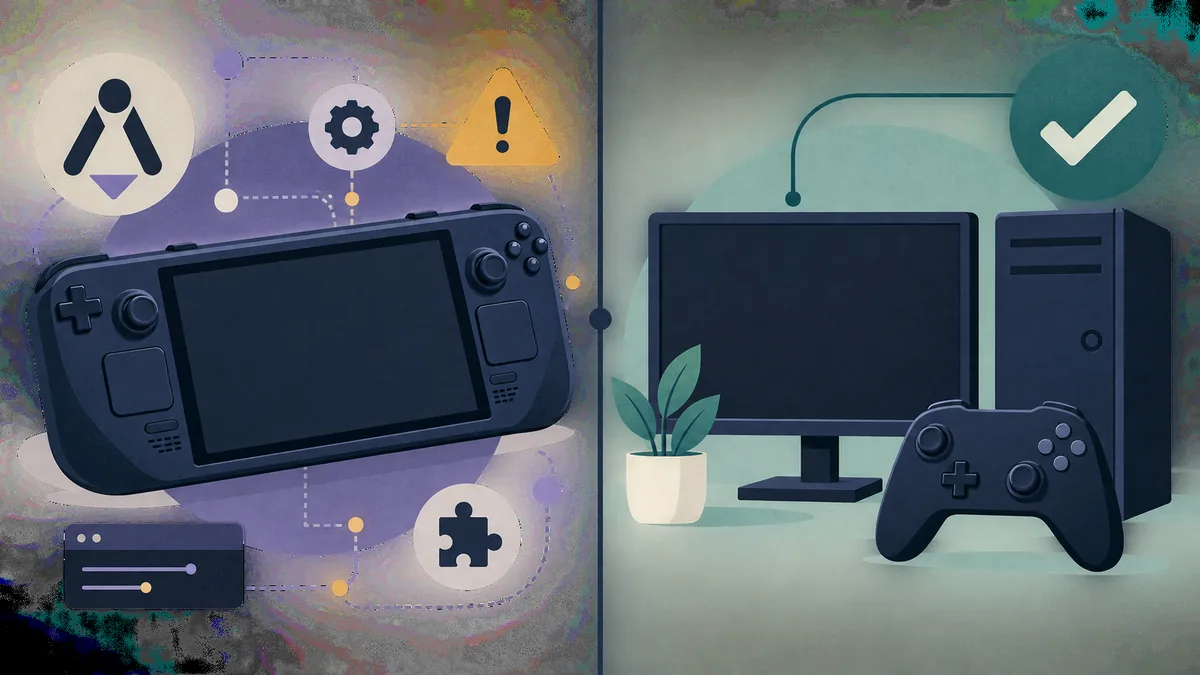
When Xenia Linux shows a black screen or closes immediately, begin with the executable, runtime and prefix. Confirm that the graphics driver is loaded, the selected renderer is supported, the prefix is writable and the log contains a new entry from the current launch. Then test the same game without patches or custom launch arguments. This order avoids treating a driver failure as a game compatibility report.
If the game boots but input is missing, check the Linux device list and the chosen backend before touching graphics. Remove duplicate virtual controllers and test a wired pad when possible. If sound is delayed or missing, repeat the clean scene and classify the issue as a runtime, renderer or title-specific problem; do not change audio, CPU and resolution together.
saves and updates
A Xenia Linux path can hide data in a prefix, a Flatpak sandbox, a package-specific directory or a manually chosen content root. Before changing Proton or moving an emulator folder, identify the active save and profile locations. Copy the working data to a dated backup and record which prefix or package created it. The Xenia save files guide helps separate normal saves, profiles and content from shader caches.
Update one layer at a time. Changing the distribution, graphics driver, runtime, Proton version, Xenia build and game files in one session removes the evidence needed to find a regression. Keep the previous build and prefix until the new combination passes the same test scene and a save reload.
after the first launch
After a successful Xenia Linux test, save the build identifier, runtime, driver, prefix path, renderer, controller backend and game revision in one note. Back up the prefix and normal saves before experimenting with patches or a second runtime. This small record is more useful than a screenshot with no version context.
Run the same scene again after a restart and after a save reload. If the result changes, restore the last known-good combination and compare one variable at a time. A clean rollback is part of a reliable Linux setup, especially when a distribution update or a new Proton build changes the graphics or input path.
controlled setup
Open the official Xenia project notes and the maintained instructions for your distribution or Proton path.
Use a native package, a documented wrapper or a dedicated Proton prefix, and keep its files separate.
Create a predictable emulator folder, prefix and legal game-content location before launching.
Open Xenia once with default settings and confirm the log, renderer and controller path.
Use one repeatable scene and record boot, input, graphics, audio and save behavior.
Adjust only a documented renderer, input or per-game setting, then repeat the same scene.
related Xenia guides
Use the narrower SteamOS and EmuDeck path when your Linux device is a handheld.
Open Steam Deck guideCheck SDL, XInput and duplicate virtual controllers before changing graphics.
Fix controller inputMeasure renderer, resolution and performance changes with a repeatable scene.
Review settingsBack up profiles, content roots and normal saves before changing prefixes.
Protect save dataSeparate a Linux runtime issue from a game-specific emulator limitation.
Check compatibilityLinux FAQ
Some users can run Xenia through Proton, a Linux-oriented build or a maintained package, but support is experimental and game-specific. Test one title with a documented setup instead of assuming universal compatibility.
Choose one maintained native, wrapper or Proton path for your distribution, prepare a writable folder and prefix, launch a clean baseline, then test one legal game before adding patches or custom settings.
Xenia Manager is documented around a Windows executable workflow. A compatibility layer may work for a specific setup, but it should not be presented as a guaranteed native Linux application; start with the emulator-focused path.
There is no universal best distribution. Use the distribution with a maintained graphics stack and documentation for your hardware, then record its driver and runtime versions so the result can be reproduced.