
Read the current source
Open the official Xenia page and the maintained SteamOS documentation before choosing a build or installer.
SteamOS platform guide
Xenia can run on Steam Deck through a Linux and Proton-based workflow, but it is still an experimental platform path rather than a guaranteed one-click install. Start with the documented SteamOS method, test one legally obtained Xbox 360 game, and keep a Windows fallback in mind when a title needs a setting or feature that Proton cannot reproduce.
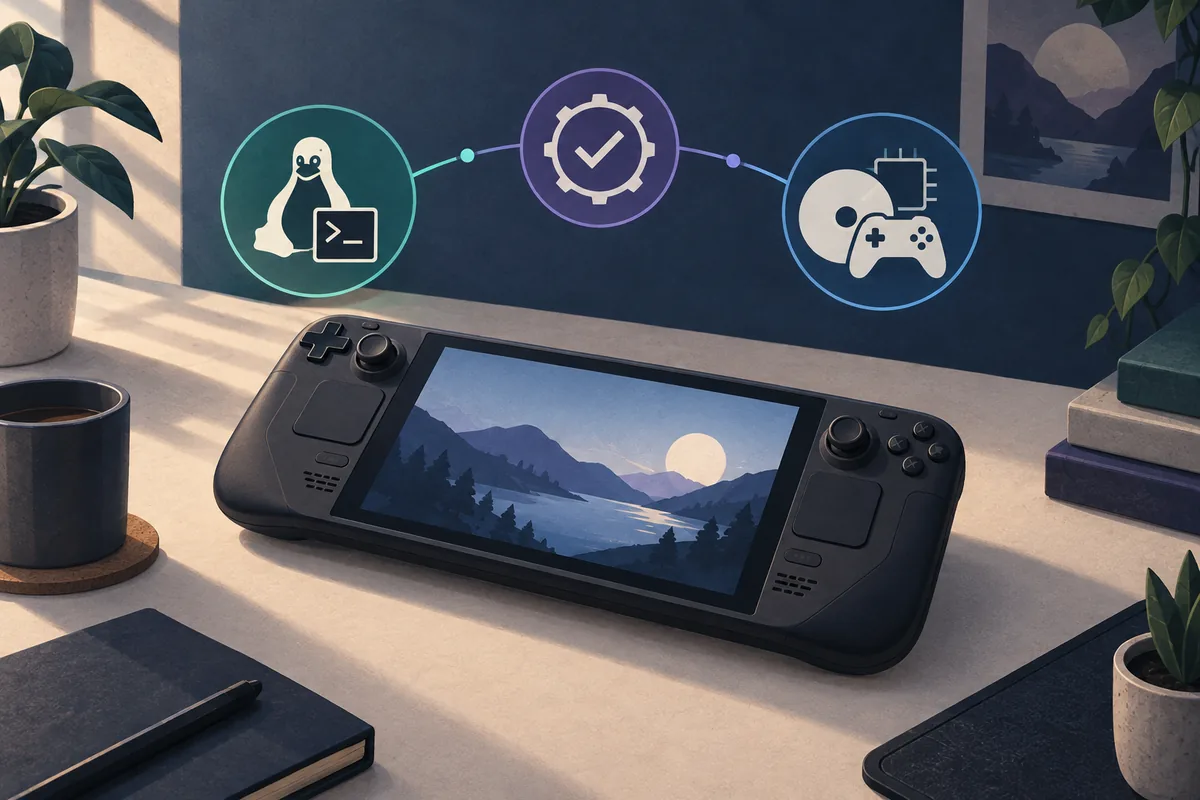
| Support level | SteamOS support is experimental. A game that boots may still need manual graphics, input, or per-title settings. |
|---|---|
| Recommended route | Follow the current EmuDeck Xenia documentation first, then use a separate prefix or folder for manual tests. |
| Build choice | Keep the Xenia executable, Proton choice, prefix and game settings recorded so a working test can be repeated. |
| Controls | Map the Steam Deck controls before changing graphics settings. A controller problem can look like a game problem. |
Quick answer
Yes, some users can run Xenia on Steam Deck through SteamOS, Proton and a community packaging workflow. The important qualifier is that this is not the same experience as running Xenia on a Windows desktop. The EmuDeck Xenia documentation describes the SteamOS path as experimental and notes that individual games may need manual configuration.
The official Xenia project site is the right place to understand the emulator family and its Linux-oriented work. Xenia Edge is not a promise that every Xenia Canary game, patch, controller layout, or Windows helper behaves identically on SteamOS. Treat each result as a compatibility test, not as a universal support claim.
Recommended path
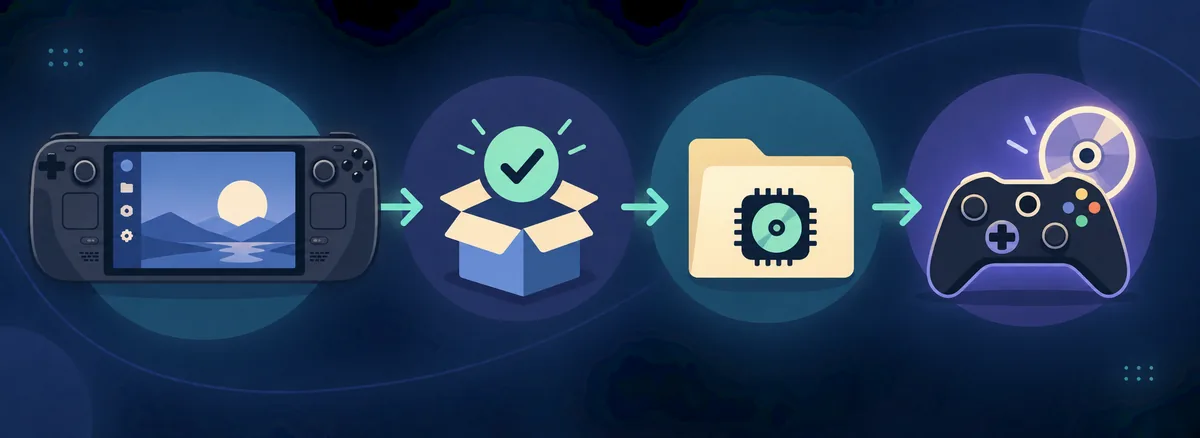
For most Steam Deck owners, the practical starting point is EmuDeck rather than a collection of random forum commands. Open the current SteamOS Xenia page, read the prerequisites, and follow its install flow in Desktop Mode. Documentation can change as Proton, EmuDeck scripts and Xenia builds change, so avoid copying an old command from a video description without checking the source date.
The first successful launch should be deliberately boring. Install the emulator path, add one game you are allowed to use, launch it with the default profile, and test input before applying patches or performance tweaks. If the game does not start, you want to know whether the failure comes from the prefix, the executable, the game content, or the settings—not from six changes made at once.
Manual setup
A manual setup can be useful when the packaged route does not expose a setting you need, but it adds more moving parts. You may need to place the Windows executable in a dedicated location, add it as a non-Steam application, choose a Proton compatibility layer, and make sure the prefix has access to the game files. Every one of those layers can fail independently.
Do not treat Xenia Manager as a native SteamOS replacement simply because it helps organize Xenia on Windows. The Xenia Manager project documentation uses a Windows executable workflow. On Steam Deck, use it only when you have confirmed that the specific helper works in your chosen prefix; otherwise keep the manager task on Windows and use the emulator-focused SteamOS path.
Controls and settings
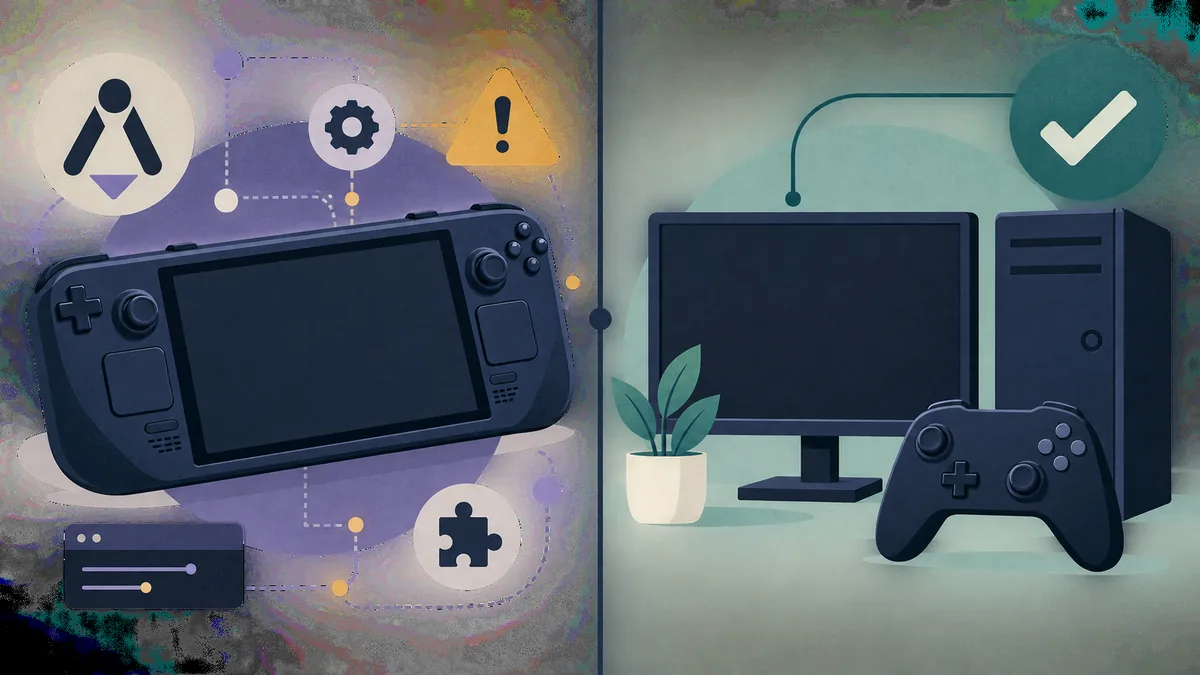
The Steam Deck controls can be exposed through several layers: the handheld layout, Steam Input, Proton, Xenia input handling and the game itself. Begin with a known Xbox-style layout and confirm that the analog sticks, triggers, menu buttons and vibration behave in one test scene. If a game ignores input, inspect the controller path before changing renderer or CPU settings.
The existing Xenia controller guide covers the general detection and mapping logic, while the Xenia settings guide is a better place to compare graphics and performance variables. On Steam Deck, a setting that helps one title may hurt another because shader compilation, memory pressure, frame pacing and Proton translation all interact.
Compatibility and fixes
When a game shows a black screen, closes immediately or freezes after loading, start with the source and build check. Confirm that the executable is the one you intended, the prefix is writable, the game files are complete and the game revision matches the compatibility note. Then retry without optional patches. A title-specific issue should not be treated as proof that all Xenia games fail on Steam Deck.
If input works but performance is poor, capture the same scene before changing anything. Note resolution, renderer, Proton choice, shader-cache behavior and whether the issue is a stable low frame rate or short stutter during compilation. If audio is delayed or missing, compare the clean baseline before adding a patch or changing several timing options. The Xenia compatibility list guide helps separate “boots” from “playable for a specific game mode.”
Saves and updates
A Steam Deck experiment can touch more than the emulator executable. Prefixes, virtual drive paths, shader caches, profiles and game saves may live in different locations depending on the install method. Before moving folders or changing Proton, use the Xenia save files guide to identify what should be backed up, then copy the working data to a location you can restore without guessing.
Update one layer at a time. Do not change SteamOS, EmuDeck, Proton, Xenia, patches and game files in one session. Record the date and previous working combination, test the same game scene, and keep the old prefix or build until the new result is stable. The Xenia Canary update guide explains the same rollback principle for Windows and the reasoning applies here too.
Controlled setup
Open the official Xenia page and the maintained SteamOS documentation before choosing a build or installer.
Use a predictable folder, writable prefix and one legally obtained game for the first test.
Follow EmuDeck or the selected maintained method instead of mixing commands from old videos and mirrors.
Test buttons, sticks, triggers and Steam Input before changing graphics or performance settings.
Record build, Proton choice, game revision, renderer and the exact scene that succeeds or fails.
Protect saves and the prefix, then change one variable at a time while keeping a Windows fallback.
Related Xenia guides
Use the Windows-first installation path when Steam Deck compatibility is not stable enough for your game.
Read setup guideCheck detection, mapping and input layers before blaming a game or Proton.
Fix controller inputCompare renderer, resolution and performance variables without changing everything at once.
Review settingsBack up profiles and content paths before moving prefixes or changing builds.
Protect save dataRead game-specific reports and separate booting from reliable playability.
Check compatibilitySteam Deck FAQ
Some games can run through SteamOS and Proton, but the path is experimental. Follow the current maintained documentation and test each game instead of assuming universal compatibility.
Start with the current EmuDeck Xenia documentation in Desktop Mode. It provides a maintained SteamOS path and explains when manual settings are required.
Linux-oriented Xenia work exists, but the practical Steam Deck experience still depends on the build, Proton or packaging path, and the specific game. Do not treat one successful launch as native support for every title.
Xenia Manager is documented around a Windows executable workflow. You may experiment with a compatible prefix, but the manager should not be presented as a guaranteed native SteamOS application; use the emulator-focused Steam Deck path first.
Possible causes include an unsupported game, wrong build, prefix or permission problem, renderer setting, shader compilation, incomplete game files, or a patch conflict. Recheck the clean baseline and change one variable at a time.
Only when the patch matches the game and build and the SteamOS setup supports it. Test the unpatched game first, keep a backup, and treat a patch as a separate variable during troubleshooting.
The location depends on the package, prefix and game path. Back up the active prefix and content folder, then use the save-file guide to identify the exact data before moving or updating anything.