
Classify the symptom
Decide whether one title is absent, a directory scan found nothing, the whole library will not load, or a visible game has a later launch problem.
library troubleshooting
The search phrase Xenia Manager games not showing can describe one missing title, an empty Scan Directory result, or a library that will not load. The cause is usually the selected path, the file chosen in Add Game, or damaged library data, not a graphics setting. This guide follows the official FAQ and keeps your source files untouched.
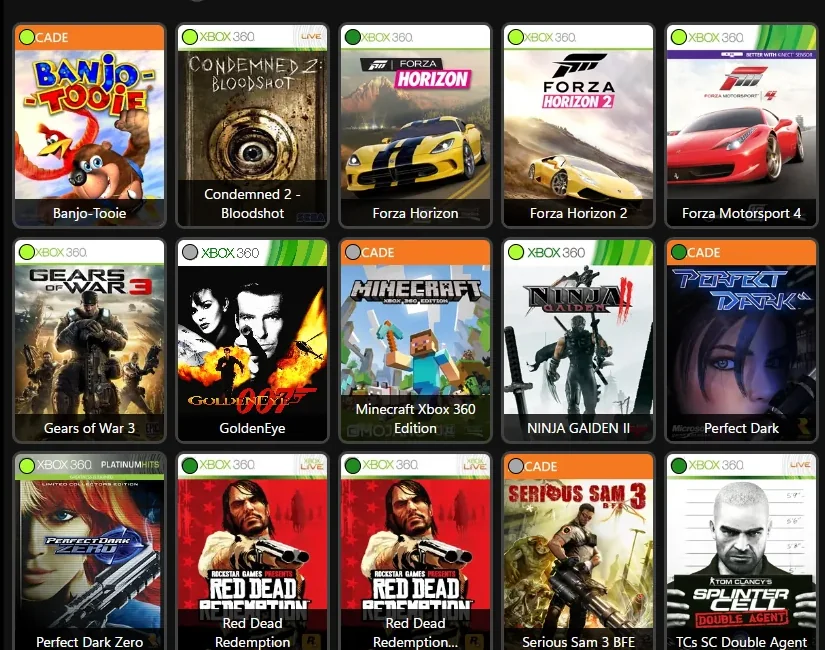
| One game is absent | Use Add Game on a supported file and check that the selected drive is available. |
|---|---|
| A folder scan finds nothing | Choose the folder that contains the game files, then run Scan Directory once and wait. |
| The whole library is blank or will not load | Back up Config/games.json and its backup before trying the official restore procedure. |
| The game appears with wrong title or art | Treat this as metadata or cover art; do not rescan or replace game data first. |
| The game appears but will not launch | Move to compatibility and launch troubleshooting; library discovery already worked. |
quick diagnosis
For the Xenia Manager games not showing problem, the fastest fix depends on where the failure happens. A single missing entry usually points to the file you selected, an unavailable drive, or a path that changed. A scan that returns no games more often means the selected directory is one level too high, the files are still inside an archive, or the manager cannot read that location. A library that stays blank or fails to load is a different problem: its saved list may need to be restored.
Separate discovery from launching. If an entry is visible in the library, Xenia Manager has found it; a black screen, crash, or compatibility error happens later in Xenia. Do not change renderer, patches, or per-game settings to fix a missing library tile. Start with the file, directory, and library state, and change one thing at a time.
supported files
The official Xenia Manager FAQ describes adding an ISO, an extracted game's default.xex, or a ZAR file when Parse Game Details with Xenia is enabled. Use Add Game and select the actual supported file, not a shortcut, an empty parent directory, or a compressed archive that has not been extracted. If you are using extracted content, confirm that default.xex exists in the game folder before adding it.
ZAR support depends on that parsing option, so a ZAR that is not recognized is a reason to check the setting and the current manager behavior, not to rename it to another extension. If Add Game cannot parse one item, test a known supported file from a location you can read. Do not download game files from mirrors; use only content you are legally entitled to use.
directory scan
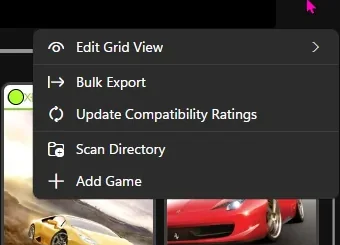
For multiple games, open the library options and choose Scan Directory. Point it to the directory that directly contains the game files or their extracted folders. Selecting a drive root or a broad parent folder can make it harder to tell what was scanned and may include unrelated files. If your games are arranged by title, select the parent of those title folders, then let the scan finish before closing the manager.
Check the path in File Explorer first. Open one game folder and confirm that its ISO or default.xex is where you expect it. If the library is on an external drive, verify that Windows still assigns the same drive letter and that the folder opens. A scan cannot find a path that has moved, is disconnected, or is not readable by your account. Run one controlled scan after correcting the location instead of repeatedly adding duplicate folders.
one missing entry
Test the affected title by itself. In Add Game, select the specific supported file and confirm that its parent drive is online. For extracted content, make sure the file is named default.xex and is not still inside a ZIP or another archive. If the manager reports a parsing problem, note the exact file and path rather than moving or renaming several files at once.
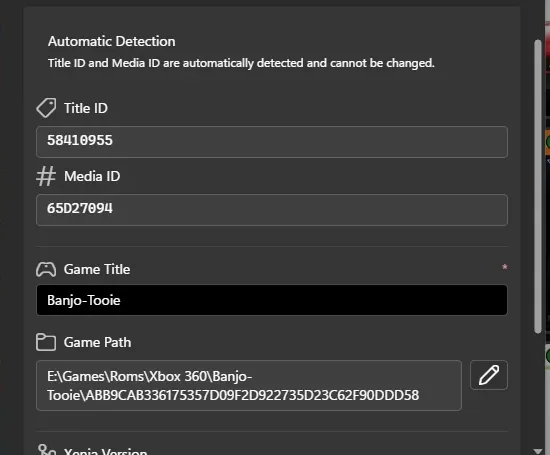
The Game Details Editor is useful after an entry has been detected: it can show the parsed title and game path. It does not replace Add Game or repair a folder scan. If the title is present but its displayed name is wrong, verify the entry's details; if it is absent entirely, return to the selected file and path. Keep a copy of any manager configuration before removing a duplicate or changing metadata.
library recovery
If every game disappears or the library no longer loads, stop rescanning and protect the manager data first. Close Xenia Manager, then make a separate copy of Config/games.json and Config/games.json.backup if those files exist. The official FAQ says to restore games.json.backup as games.json and rescan when the library does not load. Keep both original files outside the Config folder so you can undo the change if the backup is older or incomplete.
Restore only the named library file; do not delete the whole Config directory, reinstall Xenia, or remove saves and title updates. Reopen the manager, confirm whether the previous entries return, and run one scan against the known game folder. If the backup is missing or the restored list is still empty, preserve the copies and consult the official Xenia Manager FAQ before trying an unverified repair.
separate symptoms
A blank cover or incorrect title means the library entry exists. Check title details and artwork separately in the Xenia Manager cover art guide; rescanning every folder may add duplicates without fixing metadata. If the cover is correct but the game will not boot, use the Xenia compatibility list to review title-specific reports and test scope.
A game that closes before Xenia opens can involve an executable or configuration path. Follow the configuration-file troubleshooting guide for that symptom. For first-time folder and build setup, return to the Xenia Manager setup guide. Keeping these problems separate avoids changing a working library while troubleshooting a different layer.
quick recovery path
Decide whether one title is absent, a directory scan found nothing, the whole library will not load, or a visible game has a later launch problem.
Confirm an ISO, extracted default.xex, or supported ZAR with Parse Game Details with Xenia enabled.
Open the exact location in File Explorer and confirm a removable drive has not changed letters.
Use Add Game for one file or Scan Directory for a folder, then wait for the operation to finish.
Copy Config/games.json and its backup before any recovery or metadata cleanup.
For a library that will not load, restore games.json.backup as games.json and rescan the verified folder.
related Xenia guides
Review the initial folder, build, and game library configuration.
Open setup guideFix blank or incorrect artwork after a game entry has been detected.
Fix cover artTroubleshoot a game that closes before the emulator starts.
Check config pathsReview title-specific reports when a visible game does not run correctly.
Review compatibilitylibrary FAQ
For the Xenia Manager games not showing symptom, check whether the selected drive is available, the file is supported, and the folder actually contains the ISO or default.xex. For an empty or unloaded library, back up Config/games.json and its backup before following the official recovery step.
The official FAQ lists ISO, extracted default.xex, and ZAR when Parse Game Details with Xenia is enabled. Select the file itself in Add Game and do not rename a file just to make it appear supported.
Choose the folder that contains the game files or extracted game folders, then wait for the scan. Verify one title in File Explorer first, especially when using an external drive or a library that was moved.
Close the manager and copy Config/games.json plus Config/games.json.backup somewhere safe. The official FAQ describes restoring the backup as games.json and rescanning. Do not delete the whole Config folder.
No. A visible entry means discovery worked; a blank or wrong cover is a metadata or artwork issue. Verify the title details and use the separate cover-art guide before rescanning or changing game files.
Usually not. A listed game has already been discovered. Check title-specific compatibility or configuration and launch behavior instead of changing the library path.