
Describe the state
Decide whether the window, menu, gameplay scene or only Game Mode is black, and note whether audio continues.
black screen troubleshooting guide
A Xenia black screen can mean several different things: the emulator window may be visible but the game never renders, the game may still run behind a black picture, or fullscreen and Game Mode may hide a working menu. Start by identifying the exact state, then keep the build, game revision, renderer and profile unchanged while you test one variable. This guide keeps the explanation separate from the Xenia Manager library problem: a missing game entry is a scan issue, while a black screen is a display or compatibility result after launch.
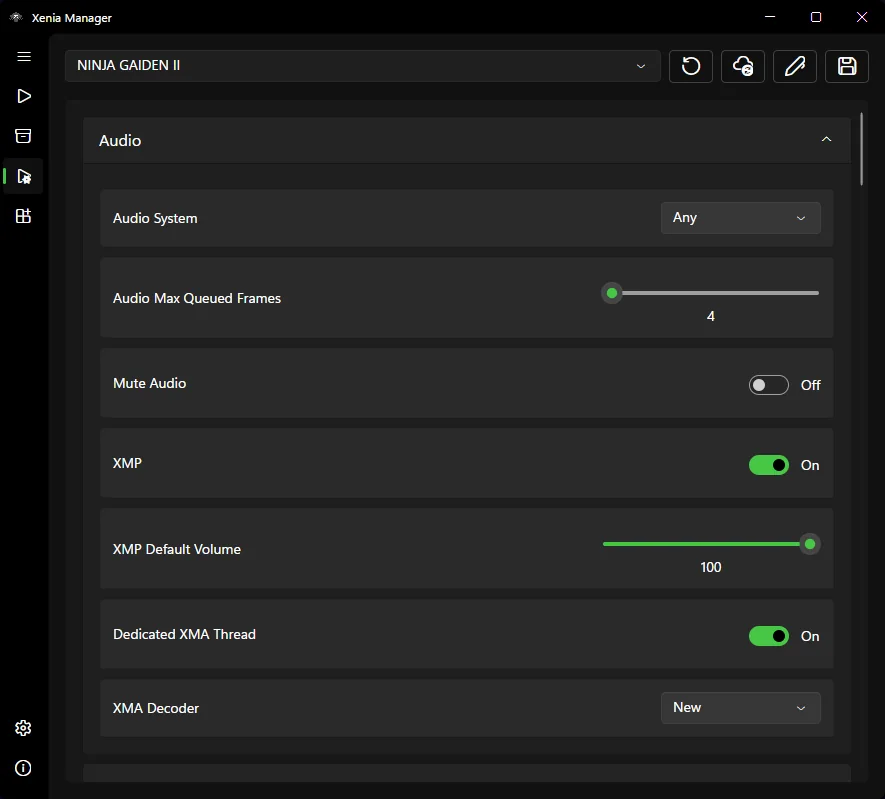
| Window is black before a game loads | Check fullscreen, display output and the clean configuration path first. Do not change patches yet. |
|---|---|
| Menus work but gameplay is black | Treat it as a game-specific renderer or compatibility issue. Record the title, revision and scene. |
| Audio continues behind a black picture | The process may still be running. Test the renderer and per-game profile instead of reinstalling immediately. |
| Only Game Mode is black | Compare desktop mode, resolution and fullscreen controls. Keep the Steam Deck branch separate from Windows fixes. |
| The problem started after an update | Return to the previous build and profile, reproduce the same scene, then compare one changed variable. |
| Xenia Manager has no game entry | Use the games-not-showing guide. A library scan failure is a different task from a black screen after launch. |
quick answer
When Xenia shows a black screen, close the emulator without deleting anything and write down the build, game revision, renderer, resolution, Title Update, patches and whether audio continues. Reopen one known-good game with a clean profile and the same display mode. If the clean test renders, the problem is in a profile, patch or game-specific option. If the clean test is still black, compare the renderer, fullscreen state and configuration location before replacing the build.
A useful first check is whether the game is actually running. Press the normal pause or menu shortcut, listen for audio, and look for a response when the window is moved or resized. A responsive process with sound points toward rendering or presentation. A frozen process or immediate exit points toward a launch, file or compatibility problem and should be documented separately.
Do not copy a long configuration from an old video and do not change the emulator, game files and patches at the same time. Xenia Master, Xenia Canary and community forks can expose different options. The goal is a repeatable baseline that tells you which layer changed the picture.
scope the symptom
A black window at startup is different from a title screen that renders but loses the picture when gameplay begins. Test a short, repeatable scene and note the transition: boot, menu, loading screen, cutscene, gameplay, save reload or a particular camera angle. If only one game is affected, keep the result attached to that game rather than calling the whole build broken.
If the menu is visible but a 3D scene becomes black, the renderer or a game-specific compatibility path is a stronger suspect than the library folder. If all games become black after a configuration change, return the last option to its previous value and test again. If the window is black only in fullscreen, switch to a windowed desktop test before changing GPU settings.
A report from the Xenia compatibility tracker can describe a narrow title and build combination, not a universal fix. The official issue for Gundam: Operation Troy, for example, records a launch or white-screen symptom against a specific Canary commit. Use that kind of evidence to choose a hypothesis, then verify the same game revision and scene on your own setup.
The Xenia Manager games-not-showing guide is the correct next page when the game never appears in the library. It does not replace this guide when the game is listed and launches to a black picture.
portable configuration
A portable configuration is useful because it keeps the emulator settings beside a test build, but it also creates a common source of confusion: you may edit one config while Xenia is reading another. Close Xenia first, confirm the folder that contains the executable, and look for the configuration file that the current build actually writes. Make a copy before editing and keep the original name available for rollback.
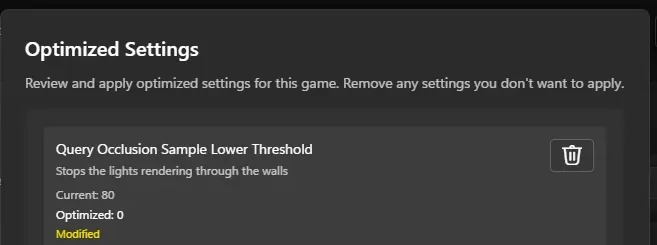
A Windows black-screen tutorial found in the research for this page uses a portable marker, opens the generated configuration file and checks a GPU-related option. That is a useful diagnostic pattern, not a universal instruction to force one value. Use the exact option name shown by your build, save only one change and repeat the same game scene. If the setting is absent, do not invent a new key; consult the current official options documentation or leave the default in place.
If the screen becomes black after moving the configuration folder, restore the backup and test from the previous location. A path error can look like a renderer failure because Xenia may silently fall back to defaults. The configuration file error guide covers missing files, directory-shaped paths and launch exits; follow it when the emulator closes before a game can render.
Keep a short note beside each copy: build tag, config path, renderer, resolution and result. That note prevents a later update from overwriting the only known-good combination.
renderer and compatibility
Once the clean configuration is confirmed, test the graphics backend that the current Xenia build documents for your platform. Change the renderer only, restart Xenia, and run the same scene. If the picture returns, record the working backend and keep it in a per-game profile. If nothing changes, restore the previous value before trying the next hypothesis.
Some titles fail only when a particular render-target path, shader behavior or plugin is active. The Xenia Canary compatibility issue for Gundam: Operation Troy discusses a D3D12 render-target option as a game-specific experiment. Treat that kind of issue comment as a scoped test: use the exact game and build context, do not paste the option into every profile, and expect that a workaround may reduce stability elsewhere.
Patches, Title Updates and DLC can change the scene that triggers the black screen. Reproduce the failure with the same content set, then repeat without the last patch or optional package. If a clean title works and a patched title fails, the emulator is not the only changed layer. Read the Xenia patches guide before enabling a new TOML entry and keep a backup of the working profile.
A black screen that affects several games with the same renderer deserves a driver and build comparison. A black screen that affects one game at one scene belongs in the compatibility branch. Do not label either case as solved until the same scene renders after a restart and a save reload.
fullscreen and Game Mode
If Xenia is visible on the desktop but black in fullscreen, first return to a windowed test. Check the display resolution and refresh path, then use the emulator's normal fullscreen shortcut only after the game renders in a window. This separates presentation from rendering and keeps a display-mode change from hiding the original result.
Steam Deck and other Game Mode setups add another branch. A Game Mode black screen can be a fullscreen, input or window-management problem even when desktop mode works. Compare the same build in desktop mode, keep the resolution conservative, and map a way to open the emulator menu before testing another backend. The Steam Deck Xenia guide covers the platform setup and limits; this page adds the black-screen decision tree.
On Xbox development-mode cases, community reports also distinguish display resolution and whether Xenia is installed as a game or an app. Those reports are environment-specific. Use them as clues, not as proof that a Windows user should change the same setting. Record the device, mode and output resolution in every report.
updates and rollback
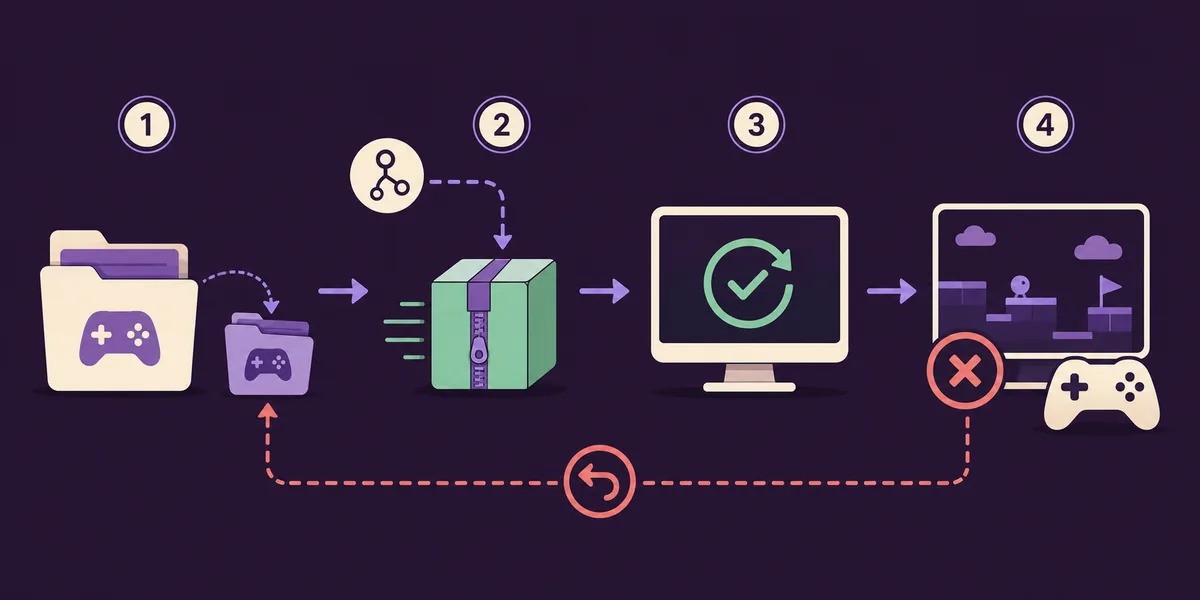
When the black screen begins immediately after a Canary update, keep the new folder and return to the previous build rather than deleting either one. Run the same game, renderer, patch state and scene on the known-good build. If the old folder renders and the new folder does not, record a possible regression and keep the build tag with your test note.
Do not update the emulator, patches and DLC in one session. A controlled update changes one layer at a time, so the result can be explained later. The Xenia Canary update guide describes the backup, separate extraction, baseline test and rollback pattern in detail.
A rollback is not a failure. Experimental emulator builds can fix one title while changing another. Keep a per-game choice when the new build works for some games and the older build remains better for one affected title.
repeatable evidence
Write down the exact build source and tag, operating system, GPU, renderer, resolution, game title and revision, Title Update, DLC, patch state, profile name, scene, input behavior and whether audio continues. Include what happened after a restart and save reload. This turns a vague black-screen report into a test another person can understand.
Use a simple three-pass sequence: clean baseline, one targeted change, then rollback to confirm the difference. If the targeted change helps, leave it in the per-game profile and test a second scene. If it does not help, restore the old value and move to the next branch. Never keep a stack of unexplained changes just because the picture briefly returned.
When reporting a compatibility issue, link the official project or game-compatibility issue rather than a mirror. Do not upload copyrighted game files or claim that a setting guarantees a result. A clear reproduction path is more valuable than a list of random presets.
after the picture returns
Once the game renders again, keep the working folder, profile and note together for several sessions. Reopen the same save, visit a busy scene and check audio, input and fullscreen before calling the issue solved. A title screen alone does not prove that the render path is stable.
If the change only helps one title, keep it in that game's profile. If it helps every title, verify that the result survives a clean restart before changing the global baseline. When a later build changes the result, compare the old and new folders instead of rebuilding the entire setup from memory.
The purpose of this guide is a trustworthy diagnosis, not a magic preset. You should be able to say which state was black, which variable changed, which scene was tested and how to return to the known-good state.
black-screen checklist
Decide whether the window, menu, gameplay scene or only Game Mode is black, and note whether audio continues.
Keep the current build, profile, saves and configuration backup. Do not delete the folder that last worked.
Use one known-good game scene with the same content, resolution and controller before changing options.
Close Xenia, confirm the active portable or user configuration, and edit a copy rather than an unknown file.
Change only the documented renderer or render-target option, restart, and repeat the same scene.
Use windowed desktop mode to separate fullscreen, Game Mode and output problems from rendering.
Save the working per-game profile, or return to the known-good build and record the regression.
related Xenia guides
Return to a conservative graphics, resolution and per-game profile baseline before testing another variable.
Review settingsUse the config guide when the emulator closes, cannot save settings or reads a directory instead of a file.
Fix config errorsCompare a new Canary build with the previous folder and roll back when an update changes the result.
Review rollbackSeparate Game Mode, desktop mode, fullscreen and platform limits when the handheld screen is black.
Open Steam Deck guideCheck Title ID, module hash and TOML state when a patch or optional package changes the rendered scene.
Check patchesFind the official game-compatibility context before treating a title-specific black screen as a global emulator bug.
Read compatibility notesblack-screen FAQ
Audio with a responsive process usually means the game is running while the renderer or presentation path fails. Repeat the same scene with a clean profile, then test the documented renderer or a game-specific compatibility option one at a time.
Record the build and game revision, keep the working folder, run a clean baseline, confirm the active configuration path, and compare windowed mode with one renderer change. Do not change patches, DLC and emulator settings together.
No. A missing library entry is a scan or path problem. If the game is listed and launches to a black picture, use this rendering and compatibility guide instead of the games-not-showing workflow.
Treat an old video as a hypothesis only. Confirm the option exists in the current build, back up the configuration, change one value and test the same scene. If the key is absent, use the current official options documentation rather than inventing it.
Fullscreen and Game Mode can hide a working window or introduce display and input differences. Compare windowed desktop mode, use a conservative resolution and keep the platform branch separate from Windows renderer changes.
Yes, a patch, Title Update or DLC can change the code path or scene that fails. Reproduce the game with the same content set, then remove only the last optional change and test again. Keep a per-game profile.
Keep the new folder, return to the previous build and profile, and run the same scene. If the old build works, record a possible regression and use the Canary update guide's backup and rollback process.
Include the exact build tag, operating system, GPU, renderer, resolution, game revision, Title Update, DLC, patches, scene, audio state and the clean-test result. Link the official compatibility issue or repository instead of uploading game files.